QueueMetrics for Asterisk Migration Process Tutorial

What is the correct procedure to Migrate QueueMetrics to a new server?
Sometimes, migrating QueueMetrics to a new server is the easiest way to upgrade the software to the latest version. There are different approaches on how to migrate QueueMetrics; this guide will focus on the most basic and reliable procedure.
Updating QueueMetrics to the hosted solution, QueueMetrics-Live is an option as well.
The migration to the hosted solution of QueueMetrics-Live is free of charge, and is performed remotely by one of our engineers.
QueueMetrics Migration steps:
First, we need to verify the version of QueueMetrics currently in use, as the migration procedure will vary accordingly:
-
If you are using QueueMetrics 24.05 or earlier, please follow the steps under Extension A.
-
If you are using QueueMetrics 24.11 or later, please follow the steps under Extension B.
Steps not marked with an extension apply to both cases.
You can find the version of the software in the lower right corner of the Homepage, or on the QueueMetrics license page.
Step 1. Stop any qloaderd/uniloader service
Depending on the version that is running, so that the current database will be in a stable state.
You can check whether or not you have uniloader or qloaderd installed by running:
ps fax | grep loader
Then run:
service qloaderd stop
or
service uniloader stop
depending on which you have installed.
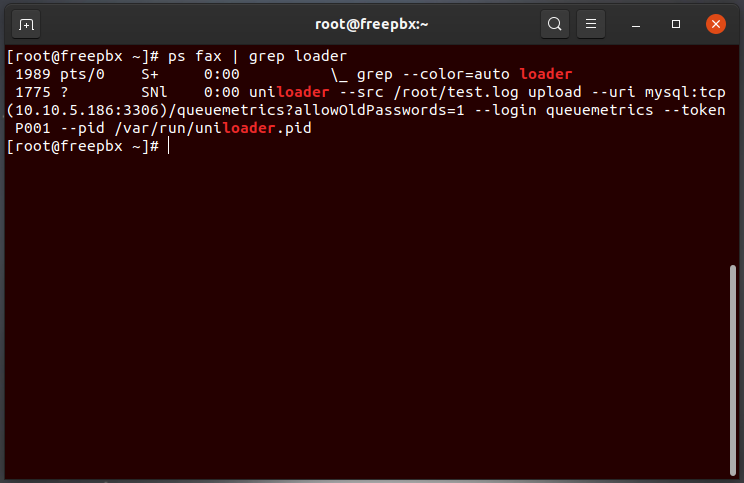
Consider upgrading to the Uniloader service if you are still running the Qloaderd script: Qloaderd Upgrade
Step 2A. Backups
Make a complete backup of your existing system (configuration and database)
Configuration
Make a copy of the following files, found in
/usr/local/queuemetrics/qm-current/WEB-INF
listed below:
- web.xml
- configuration.properties
- tpf.properties
- agaw.properties
Database
Make a full backup of your database:
mysqldump -uroot -ppassword queuemetrics > queuemetrics_Backup.sql
NOTE: This will make QueueMetrics inaccessible for a short period of time, so make sure nobody is working on it at the time of the migration.
Step 2B. Backups
Make a complete backup of your existing system (the database contains most of the necessary information)
License
Make a copy of the following file
/usr/local/queuemetrics/qm-current/WEB-INF/tpf.properties
Database
Make a full backup of your database:
mysqldump -uroot -ppassword queuemetrics > queuemetrics_Backup.sql
NOTE: This will make QueueMetrics inaccessible for a short period of time, so make sure nobody is working on it at the time of the migration.
Step 3. Install QueueMetrics
Install QueueMetrics using yum on your new server. It should be enough to run:
yum install queuemetrics -y
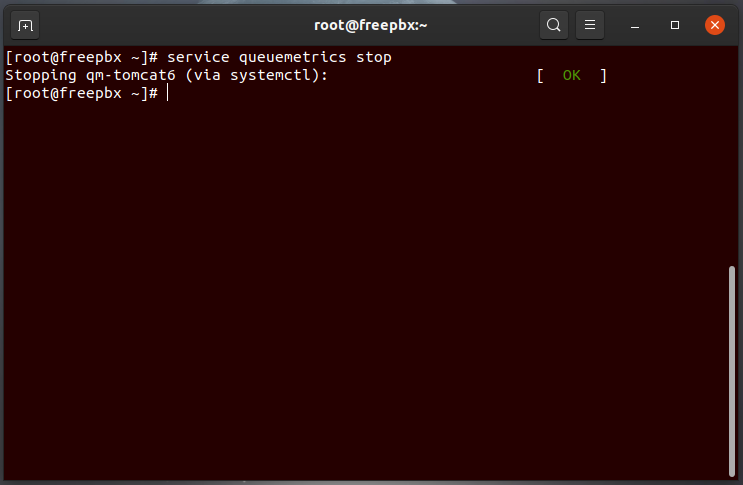
When it’s working (if you are able to log in), turn it off with:
service queuemetrics stop
Step 4. Import Database Backup
Overwrite the freshly created QueueMetrics database, on the new server, with the database backup from the old server:
mysql -uroot -ppassword queuemetrics < queuemetrics_Backup.sql
Step 5A. Import Configuration Files
Import the configuration files you copied previously in the new WEB-INF folder (/usr/local/queuemetrics/qm-current/WEB-INF).
If you are using the DirectAMI mode and only migrating QueueMetrics, remember to edit the callfile.dir property, from the “Edit system parameters” section, with the correct IP address of the PBX server.
Step 5B. Import License File
Import the QueueMetrics license file you copied previously in the new WEB-INF folder (/usr/local/queuemetrics/qm-current/WEB-INF/tpf.properties).
Step 6. Start the new QueueMetrics instance
Start the new QueueMetrics instance with:
service queuemetrics start
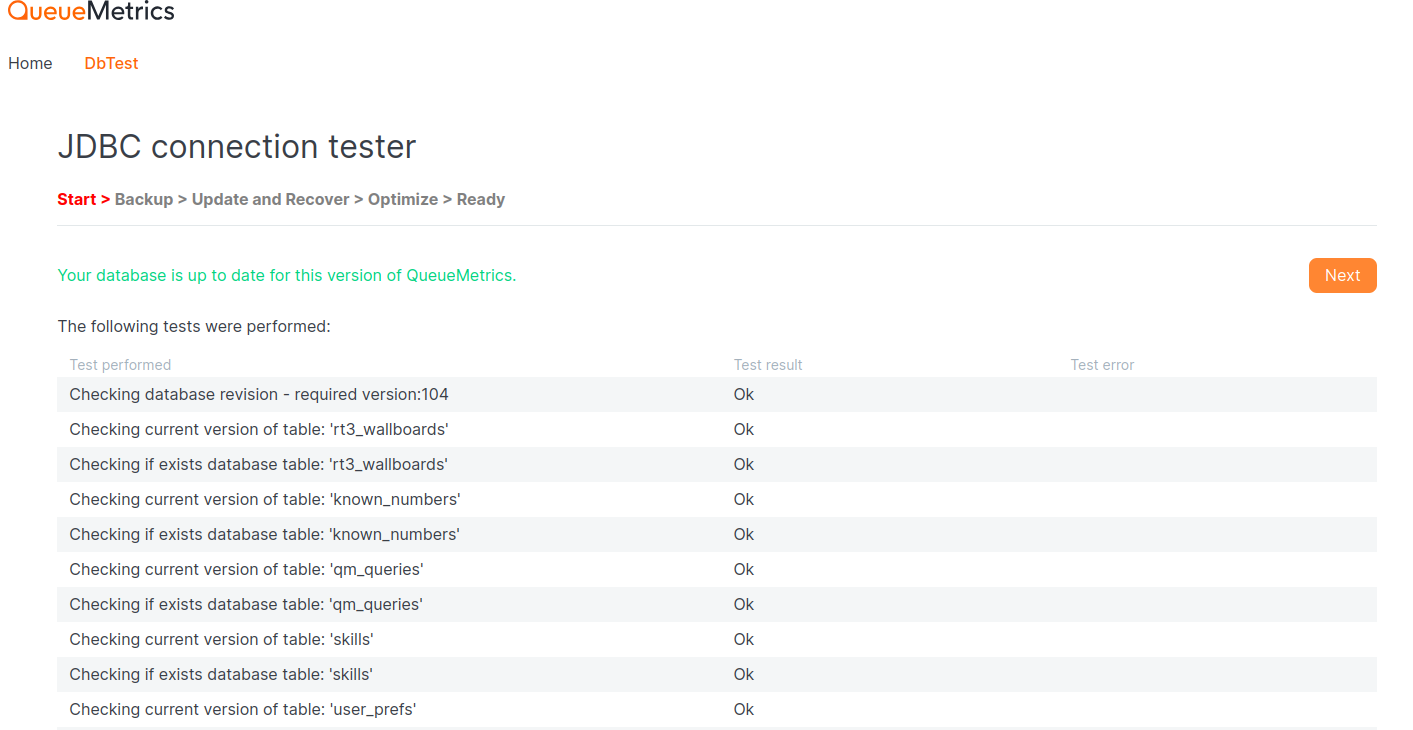
When you connect to the new QueueMetrics, it will realize that the database comes from an older version and will automatically update it, if needed. Follow the procedure and accept the license agreement.
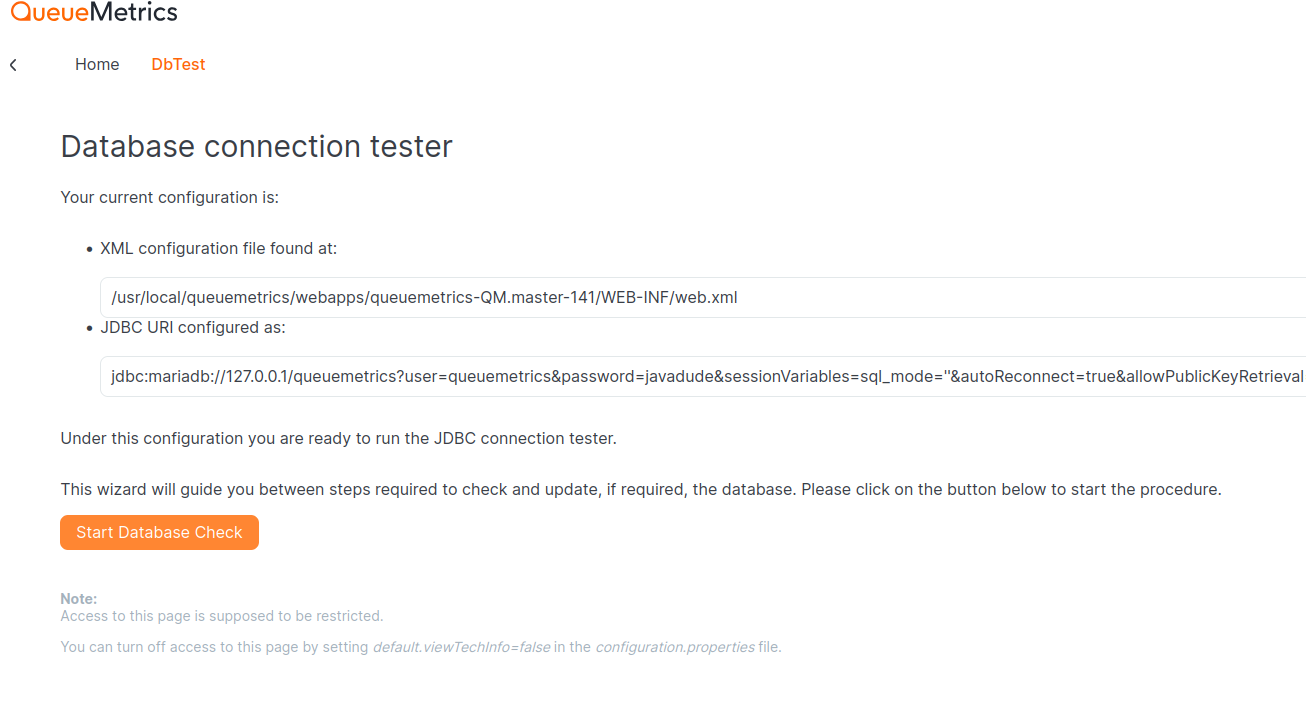
Depending on the size of your database it might take a few minutes for the database to update.
NOTE: If you are updating from a version older than 17, you will need to update the database driver as well. You can find more details here:
Driver Update
Step 7. Stop the old QueueMetrics instance
Stop the old QueueMetrics instance with:
service queuemetrics stop
NOTE: This will make QueueMetrics inaccessible, so make sure nobody is working on it at the time of the migration.
Step 8. Sending data to the new QueueMetrics
If you are only migrating QueueMetrics, on the Asterisk machine, edit the Uniloader configuration; usually stored in:
/etc/sysconfig/uniloader
You will want to switch to the DirectAMI-Live platform.
You can follow this guide for more details:
Sending data through HTTP, to your QueueMetrics instance
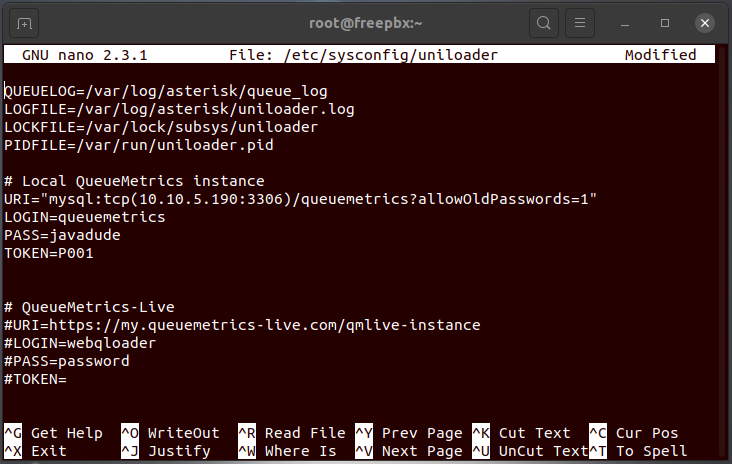
The DirectAMI-Live platform is more stable and faster than the Classic or DirectAMI platforms.
If you are Migrating the PBX as well, install and configure the Uniloader service. You can find some more details here:
Uniloader installation
Step 9. Final steps
Restart the Uniloader service on the PBX server with:
service uniloader start
Check if the Uniloader service in sending data to the new database
From the new “Live DB Inspector” page, under “System Diagnostic Tools” on the QueueMetrics Homepage.
The new system should be working now!
Now, you just have to share the new QueueMetrics IP with your agent and start using the new Instance.
About QueueMetrics
QueueMetrics is a highly scalable monitoring software that lets you track agent productivity, payrolls, measure targets, conversion rates, queues/ACDs, IVRs, music-on-hold, generate outbound campaign statistics and monitor realtime processes with customizable wallboards.
You can measure all activities in your contact center with more than 200 different metrics and manage realtime processes with live alarms and full control on calls and extensions, including whisper, spy and barge modes.
QueueMetrics is available on premise or as a cloud hosted service, and it is compatible with FreePBX, Grandstream, Issabel, MiRTA, Enswitch, Yeastar S PBX, VitalPBX, FusionPBX and many other Asterisk- and Freeswitch-based systems. It also supports Microsoft Teams telephony.
For more technical information please refer to the User Manual.
Visit www.queuemetrics.com for a free 15-day full-featured trial.
keyboard_arrow_left Back