Automating Quality Assessment: post-call surveys (updated)

Manually reviewing calls is useful, but, like listening to hold music on loop, it comes at a cost:
- Expensive: human time isn’t cheap.
- Low-yield: many calls are pure “Where’s my parcel?” filler.
- Sampling bias: analysts gravitate toward “interesting” calls, not necessarily representative ones.
Why not automate it?
How an Automated QA loop works
1) Agent finishes the call and transfers the customer to a short IVR (“post-call survey”). 70-80 % of callers usually play along.
2) The IVR asks two or three simple questions (e.g., “Were you happy with our service”).
3) Asterisk pushes the answers to QueueMetrics as a QA form.
4) Supervisors run a QA report to check the results.
QueueMetrics Configuration
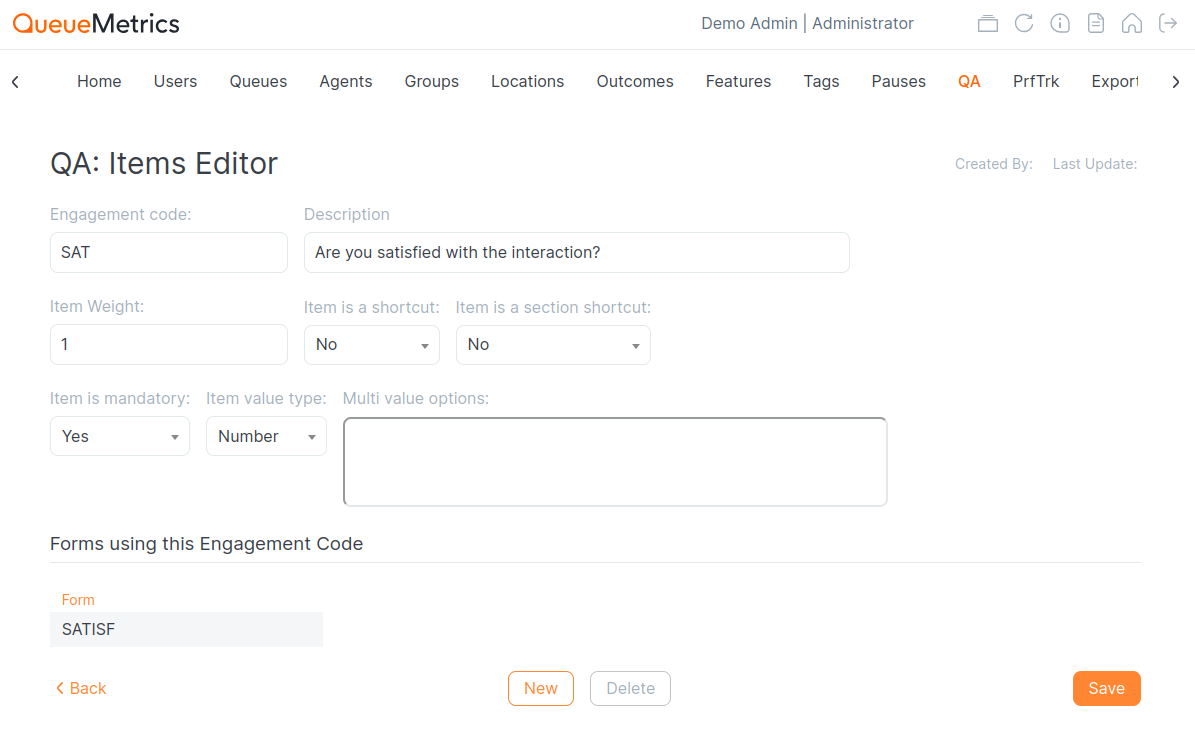
1) Create a QA Item called SAT with the following configuration.
Homepage → Settings → QA form → Edit Items → Create New
- Engagement code:
SAT - Description:
Are you satisfied with the interaction? - Item Weight:
1 - Item value type:
Yes/No
2) Create a QA form
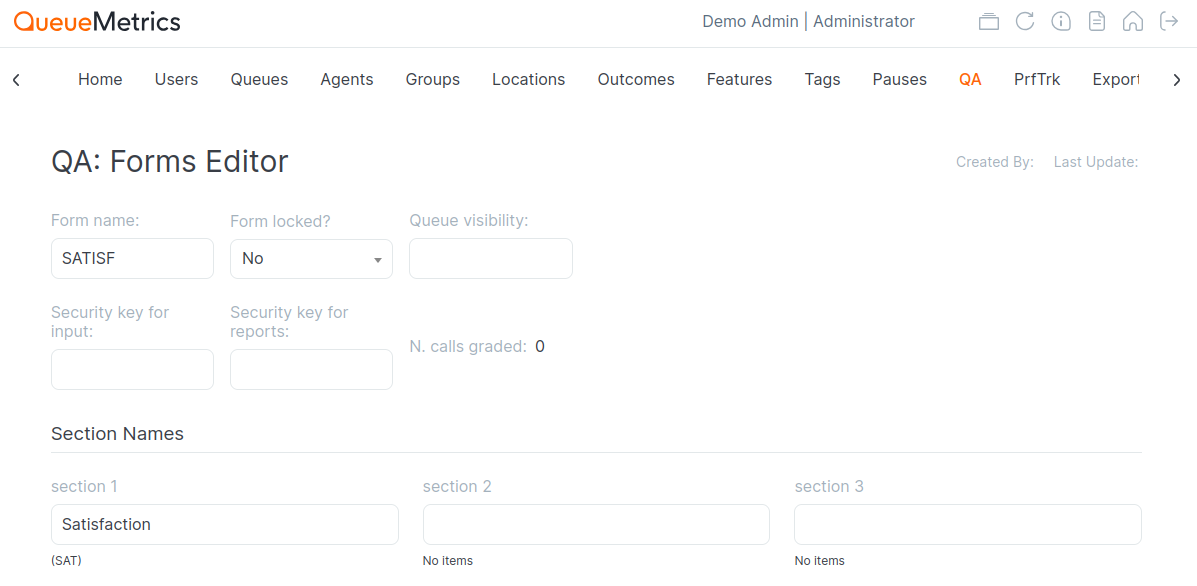
Homepage → Settings → QA form → Create New
- Form name:
SATISF - section 1:
Satisfaction - Save form → Edit Sections → Add new item →
Satisfaction→SAT→ Save
3) Create an API User in QueueMetrics
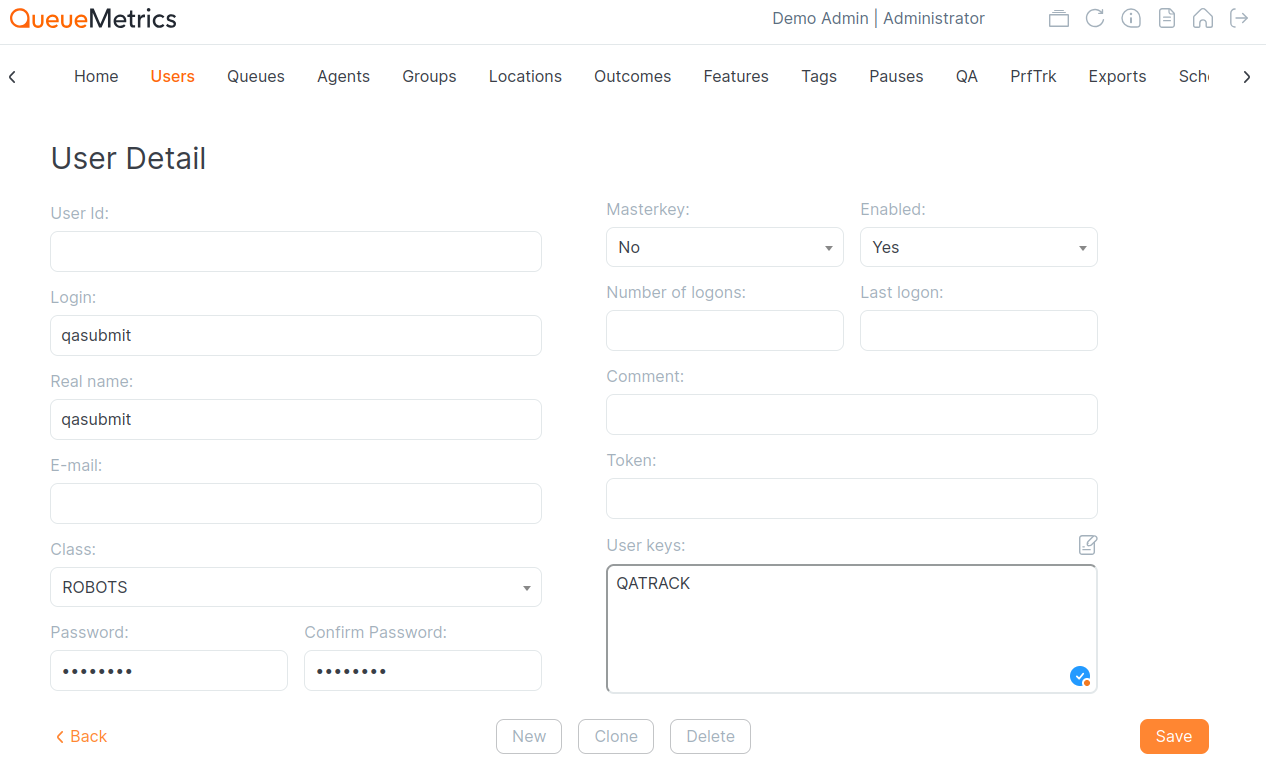
Homepage → Settings → Users → Create New
- Login:
qasubmit - Real name:
qasubmit - Class:
ROBOTS - Password:
passw0rd - User keys:
QATRACK
Asterisk Setup
1) Make sure the Unattended transfers are enabled and working on your PBX
If needed, add the t option to your Queue() call so agents can dial # + extension
2) Grab the helper script from our GIT repository:
https://github.com/Loway/OpenQueueMetricsAddOns/blob/master/log-ivr-to-qaform/pushQA.sh
3) Copy the pushQA.sh script in the /var/lib/asterisk/agi-bin/ Asterisk folder
4) Give the executable permissions with chmod +x /var/lib/asterisk/agi-bin/pushQA.sh
4) Edit the QM parameter in the pushQA.sh script with the correct QueueMetrics address
5) Create a simple IVR script to transfer to, that will implement the logic, that asks the Yes/No question and stores the DTMF result
Asterisk dialplan
This is the part of dialplan you will have to add to make the Automated QA work.
In the following dialplan extract you will find some placeholders that will have to be substituted:
- queue-welcome: this is the audio file that will be played as a welcome message, before the call enters the queue.
- myqueue: this is the queue where the calls will be sent after listening to the welcome message.
- ivr_satisfaction: this is the audio file that will be played to ask the IVR questions to the client.
- thank-you: this is the audio file that will be played to thank the user after the IVR process.
The dial-plan snippet is as follows:
; First Section
exten => _900,1,Wait(1)
exten => _900,n,Answer
exten => _900,n,Playback(queue-welcome)          ; Greeting
exten => _900,n,Set(CHANNEL(musicclass)=default)
exten => _900,n,Set(__QUE=myqueue)
exten => _900,n,Set(__UID=${UNIQUEID})
exten => _900,n,Queue(${QUE},t,,,300)            ; Timeout
exten => _900,n,Hangup

; Second Section
exten => _999,1,Answer
exten => _999,n,Background(ivr_satisfaction)     ; Ask the question
exten => _999,n,Wait(10)                         ; Give 10s to respond
exten => _999,n,Hangup()

; Not Happy
exten => 0,1,Playback(beep)
exten => 0,n,System(/var/lib/asterisk/agi-bin/pushQA.sh ${UID} ${QUE} 0)
exten => 0,n,Playback(thank-you)
exten => 0,n,Hangup

; Happy
exten => 1,1,Playback(beep)
exten => 1,n,System(/var/lib/asterisk/agi-bin/pushQA.sh ${UID} ${QUE} 100)
exten => 1,n,Playback(thank-you)
exten => 1,n,Hangup
What Happens in Real Time
1) Call lands in myqueue; agent chats with the customer.
2) Agent asks: “Do you mind answering one quick question?”
3) If the customer says yes, agent dials #999.
4) IVR plays the question.
5) Customer presses 1 (happy) or 0 (not so happy).
6) A thank-you message is played for the customer and the call ends.
6) pushQA.sh fires a JSON call to QueueMetrics, saving SAT = 100 or 0.
7) Supervisor can run a QA report to check the results.
About QueueMetrics
QueueMetrics is a highly scalable monitoring software that lets you track agent productivity, payrolls, measure targets, conversion rates, queues/ACDs, IVRs, music-on-hold, generate outbound campaign statistics and monitor realtime processes with customizable wallboards.
You can measure all activities in your contact center with more than 200 different metrics and manage realtime processes with live alarms and full control on calls and extensions, including whisper, spy and barge modes.
QueueMetrics is available on premise or as a cloud hosted service, and it is compatible with FreePBX, Grandstream, Issabel, MiRTA, Enswitch, Yeastar S PBX, VitalPBX, FusionPBX and many other Asterisk- and Freeswitch-based systems. It also supports Microsoft Teams telephony.
For more technical information please refer to the User Manual.
Visit www.queuemetrics.com for a free 15-day full-featured trial.
keyboard_arrow_left Back