First step with QueueMetrics - Report

How can we gain a better understanding of the data from our call center?
The Report.
Create a new report
Creating a new report in QueueMetrics is simple and allows you to customize how your data is presented.
To create a new report, follow these steps:
-
From the home page click on the Report section
-
Set the Name for Your Report - Enter a clear and descriptive name for your report. This helps you identify it later, especially if you’re managing multiple reports.
-
Select Queues to Analyze - Choose one or more queues that you want this report to include. You can add or change these later as well.
-
Define the Time Range - Set a default time range (e.g., last 7 days, today, last month). This will be the initial range shown when opening the report.
-
Add Pages and Data Blocks - Once the report is created, you can add pages and fill them with data blocks, depending on what you want to analyze (calls, agent sessions, pauses, etc.).
-
Save the Report - Don’t forget to click Save to keep your changes.
Below is the explanation of how the agent page is structured:
Understanding the Report Page Layout
When we open a new report, we are presented with the following layout:
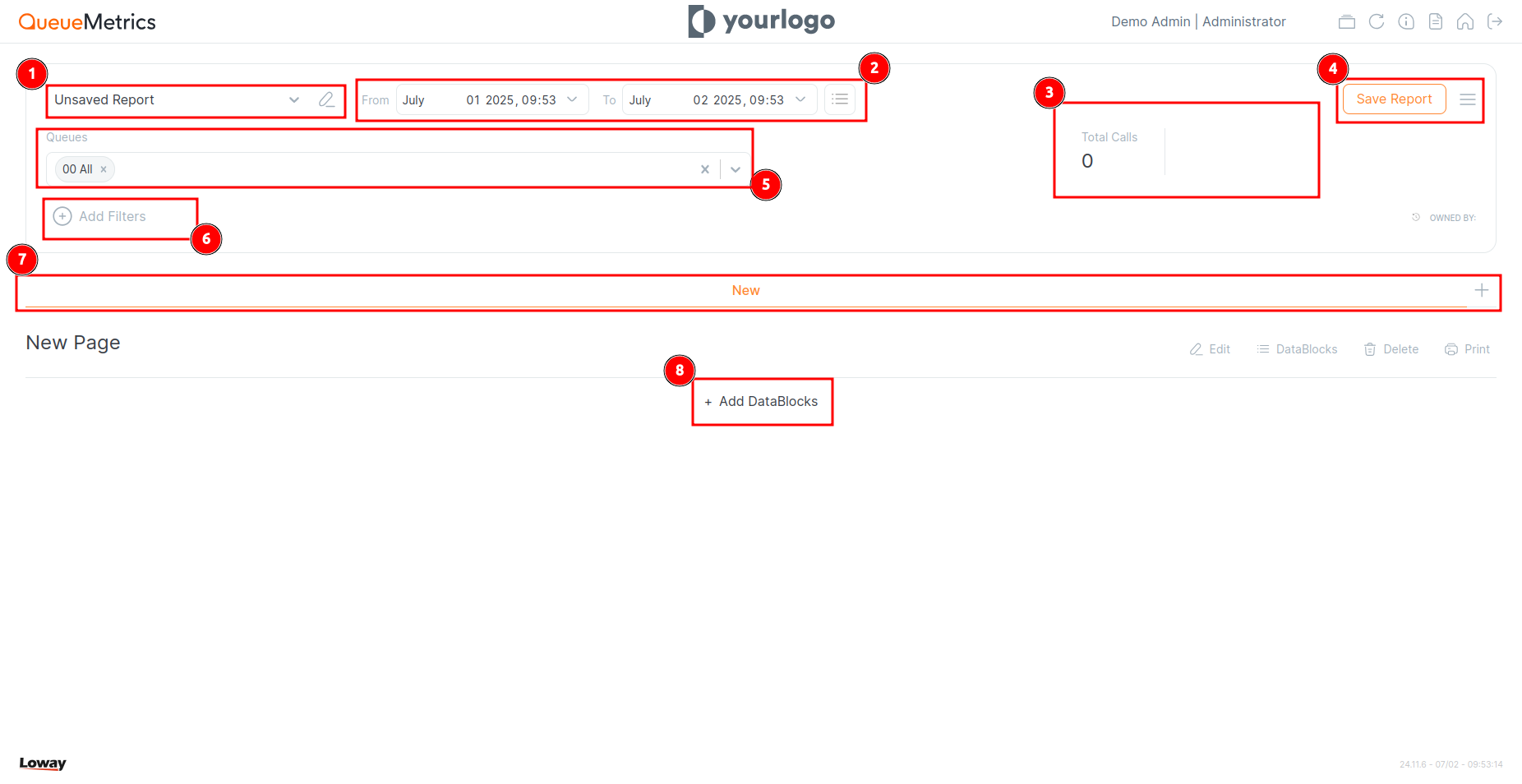
here we can see:
-
Report Title – The name of the report.
-
Time Range Selector – The selected time range for the report. You can manually set a start and end date, or use the drop-down menu to choose from predefined ranges.
-
Call Summary – Displays the total number of calls, along with a breakdown of answered and unanswered calls.
-
Report Action Buttons – This includes the Save button. If any changes are made, an Apply button will appear. You’ll also find the menu described in the next section.
-
Queue selector – Shows the queues that will be analyzed in the report.
-
Filter selector – Allows you to apply additional filters to refine the report data, described in the next section.
-
Report Pages – Each report can have multiple pages, each containing different information. For example, you might have one page analyzing call volume for a specific queue, and a second page analyzing agent pauses and session activity.
-
Data Block Section – This is where you can add data blocks to display the metrics and analytics relevant to your report.
The Report Operation Menu
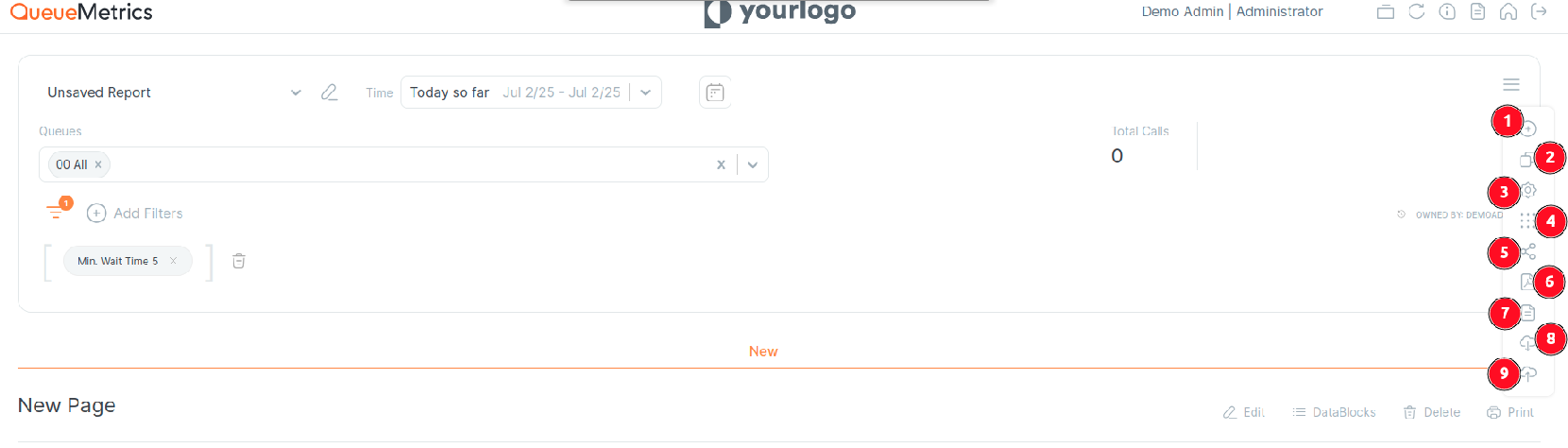
In this menu, you can find the following actions:
-
Create New Report – Allows you to create a new report directly from this page.
-
Clone Report – Useful when you want to duplicate a report layout for different queues or agents. You can create the first version and then clone it, changing only the name and the selected queues or agents.
-
Settings – Opens the report settings, which are explained in the next section.
-
Datablock Menu – Displays the list of all available data blocks (graph or tables of data).
-
Share Report URL – Allows you to copy and share the direct URL of the report.
-
Export to PDF – Generates a PDF file of the current report (without graphs).
-
Export to Excel – Exports the report in XLS format (without graphs).
-
Import JSON – Allows you to import a report template in JSON format.
-
Export JSON – Exports the current report template as a JSON file.
Here you can find some templates of reports.
The Report Filter Menu
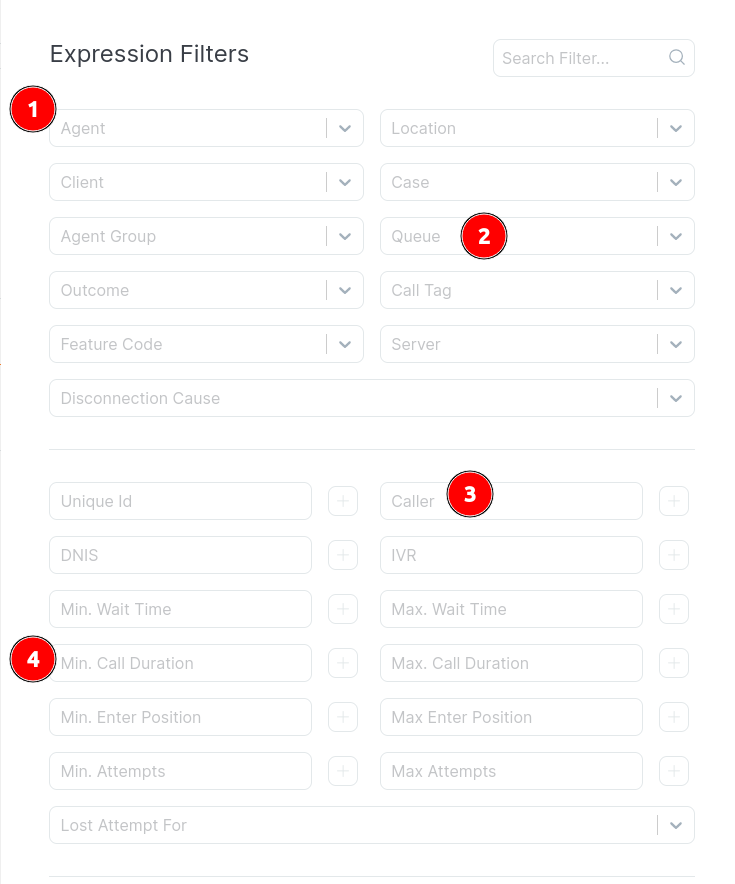
In this section, you can find all the available filters that can be applied to a report. Below are some of the most useful filters:
-
Agent – Filter the data by specific agents.
-
Queue – Filter the data by specific queues.
-
Caller – Filter by caller number or pattern (e.g., to isolate internals or external callers).
-
Min. Call duration – Show only calls that lasted longer than a specified number of seconds.
Combining Filters with Logical Operators
After adding more than one filter, you can also choose the type of logical operator to use by combining them:

The three available operators are:
-
OR – The report will include data that matches at least one of the selected filters.
-
AND – The report will include only data that matches all selected filters at the same time.
-
NOR – The report will include only data that does not match any of the selected filters.
By clicking on a filter bubble, you can also set it as a negative filter.
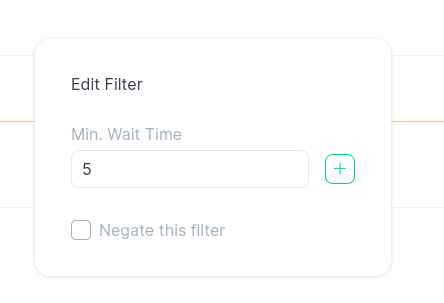
This means the report will exclude data that matches the selected filter.
For example, selecting a specific agent and marking the filter as negative will show all data except that agent’s activity.
The Report Data Block Section
The Data Block Section is where you build the content of your report by adding specific blocks of information. Each data block represents a predefined set of metrics, charts, or tables related to queues, calls, or agents.
You can fully customize your report by choosing which data blocks to include, their order the columns, and how they are displayed across different pages.
The main group of datablock are:
-
AgentsDO e.g.,
AG01,AG09For detailed reporting on agent activities, availability, sessions, and pauses. -
CallDistrDO e.g.,
DD01,DH08For call distribution by day, hour, or weekday. -
KoDO e.g.,
UN03,UN04For missed/unanswered call reports, including disconnection reasons and queue-based summaries. -
OkDO e.g.,
OK03,OK04For answered call metrics, SLA (Service Level Agreement), and agent queue activity. -
OutcomesDO e.g.,
OU01,OU02For call outcomes, billable vs non-billable events, and general outcome reporting. -
FcrDO For customer First Call Resolution (FCR) analysis.
You can find all of our Datablock list and detail here.
About QueueMetrics
QueueMetrics is a highly scalable monitoring software that lets you track agent productivity, payrolls, measure targets, conversion rates, queues/ACDs, IVRs, music-on-hold, generate outbound campaign statistics and monitor realtime processes with customizable wallboards.
You can measure all activities in your contact center with more than 200 different metrics and manage realtime processes with live alarms and full control on calls and extensions, including whisper, spy and barge modes.
QueueMetrics is available on premise or as a cloud hosted service, and it is compatible with FreePBX, Grandstream, Issabel, MiRTA, Enswitch, Yeastar S PBX, VitalPBX, FusionPBX and many other Asterisk- and Freeswitch-based systems. It also supports Microsoft Teams telephony.
For more technical information please refer to the User Manual.
Visit www.queuemetrics.com for a free 15-day full-featured trial.
keyboard_arrow_left Back