QueueMetrics and Slack integration

How can you turn QueueMetrics data into live notifications for your chat tools?
In this tutorial we’ll build a small example that sends agent pause / unpause events from QueueMetrics to a Slack channel using the QueueMetrics JSON APIs and a tiny Node.js script on Rocky Linux 9+.
The same pattern works not only for Slack, but also for Microsoft Teams, Rocket.Chat, Mattermost, Telegram, and any other system that accepts HTTP webhooks, you just change the destination URL and payload.
QueueMetrics → Slack: agent pause/unpause notifications
When we’re finished, every time an agent pauses, changes pause code, or unpauses, a message like this will appear in your Slack channel:
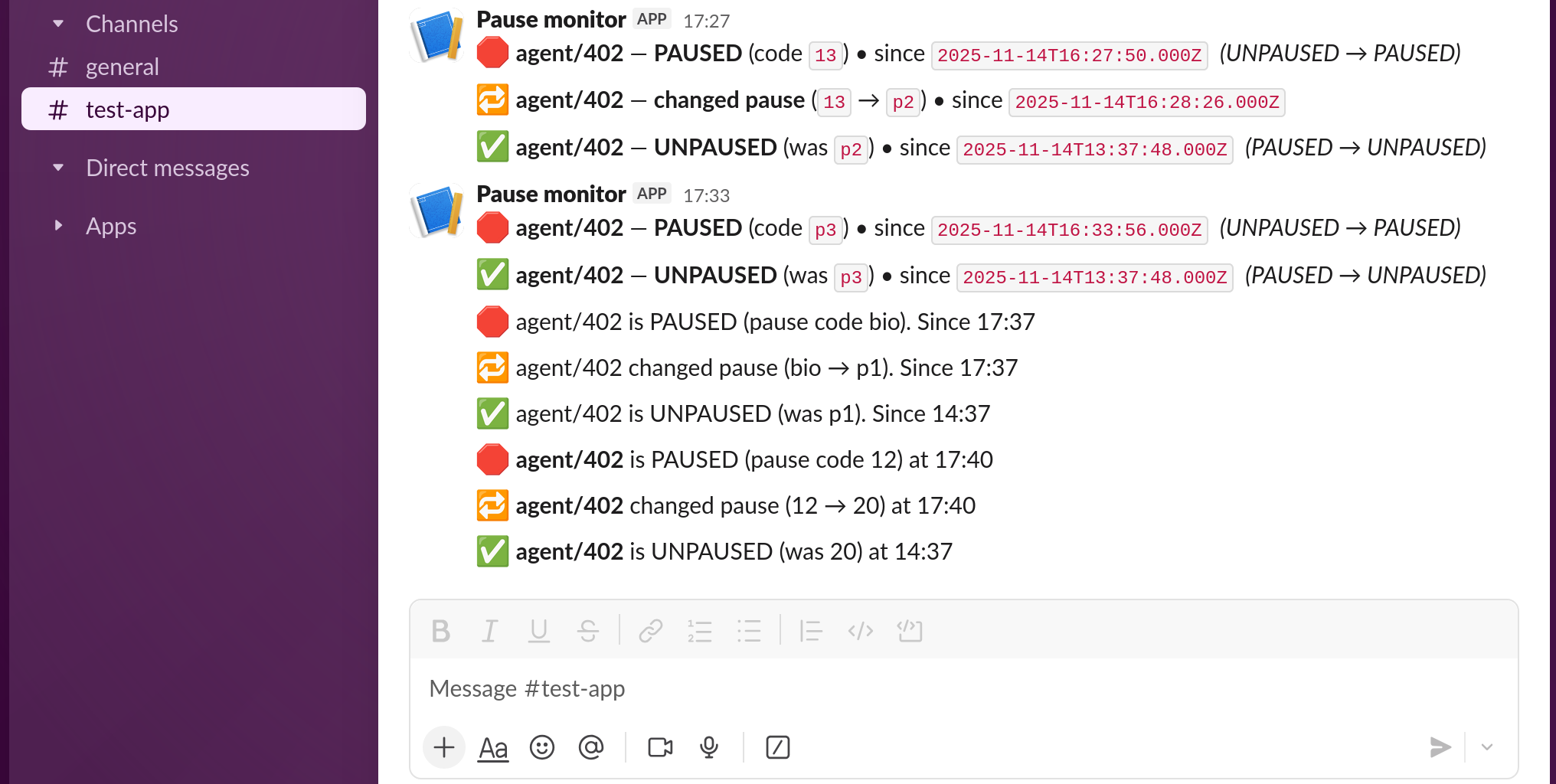
We’ll implement this with:
- QueueMetrics Realtime JSON API (
RealtimeDO.RtAgentsRaw) - A small Node.js 20+ script that polls the API
- A Slack Incoming Webhook that receives the notifications
- A systemd service to keep everything running on Rocky 9+
1. What you need
1.1. Rocky Linux server
- Rocky Linux 9 or later
-
Outbound HTTPS access to:
- your QueueMetrics instance
- Slack (
https://api.slack.com/apps)
1.2. QueueMetrics
- A working QueueMetrics instance (on-prem or Live)
-
A Robot User with:
- valid credentials
- access to the queues you want to monitor
- Your QueueMetrics base URL, for example:
https://my.queuemetrics-live.com/queuemetrics
1.3. Node.js 20+
On Rocky 9, install Node 20 like this:
sudo dnf -y update
sudo dnf -y module enable nodejs:20
sudo dnf -y install nodejs
node --version
Make sure node --version prints v20.x.x or newer.
1.4. A Slack workspace and channel
- A Slack workspace
- A channel (e.g.
#pause-notifications) - Permission to create a Slack app (
https://api.slack.com/apps)
2. Create a Slack app and incoming webhook
We’ll use a simple incoming webhook, no need for a full bot.
- Go to https://api.slack.com/apps and sign in.
- Click Create New App → From scratch.
- Name it something like
QueueMetrics Notifierand select your workspace. - In the left sidebar, open Incoming Webhooks.
- Toggle Activate Incoming Webhooks to On.
-
Click Add New Webhook to Workspace:
- Choose your channel (e.g.
#pause-notifications) - Click Allow
- Choose your channel (e.g.
-
Slack shows you a Webhook URL, similar to:
https://hooks.slack.com/services/T00000000/B00000000/XXXXXXXXXXXXXXXXXXXXXXXXYou should now see the Slack incoming webhook configuration page, similar to this:
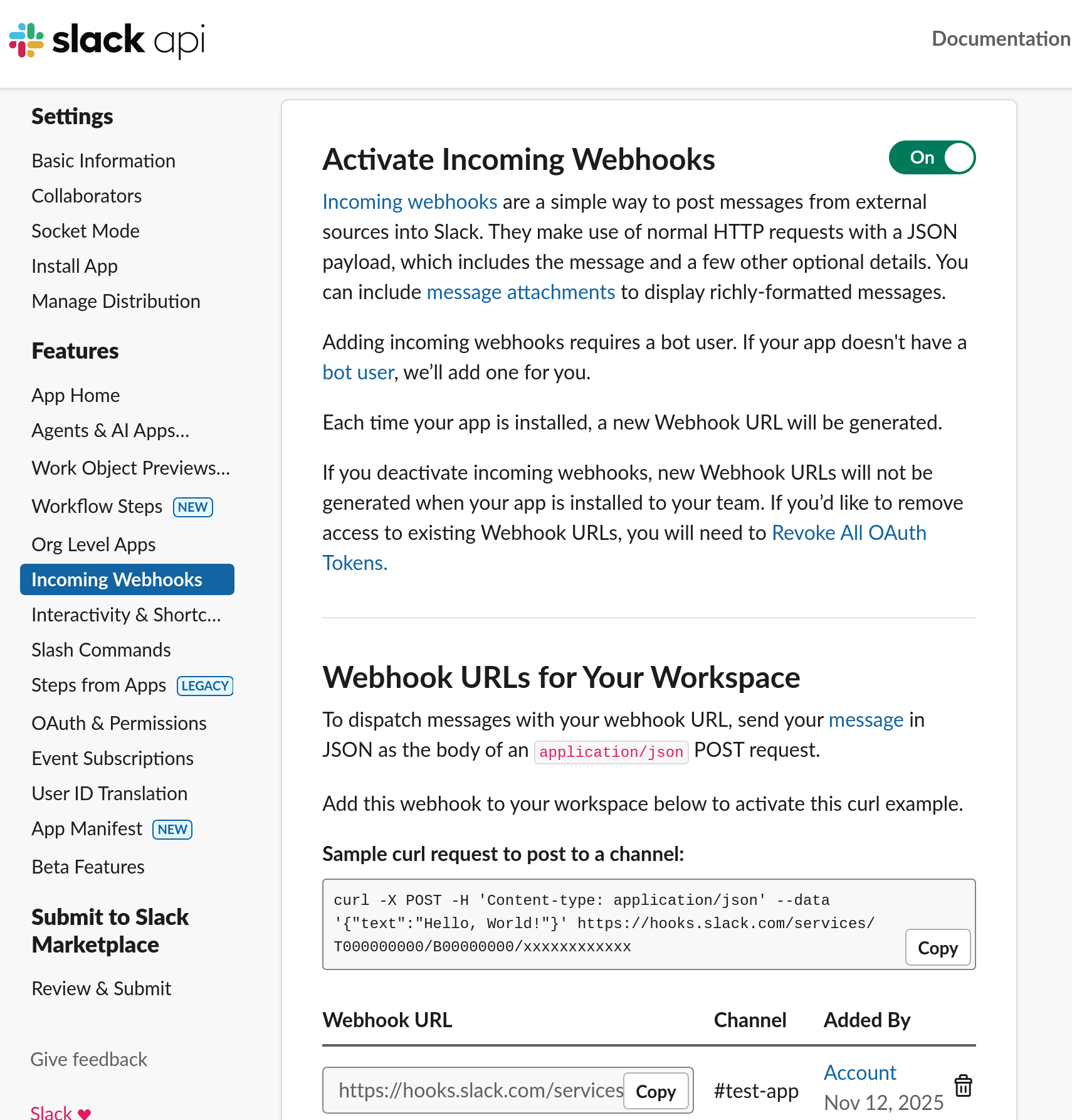
Copy this URL somewhere safe, we’ll need it as
SLACK_WEBHOOKin the script.
You can add more webhooks later or change the channel directly from the Slack app settings.
3. Download the example script and service
We’ll use the ready-made example from our QueueMetrics add-ons repository. This is just an example of what you can achieve, feel free to edit or create new scripts for yourself.
Repository:
https://github.com/Loway/OpenQueueMetricsAddOns/tree/master/API_Notifier
Files you need:
- Notifier script (Node.js)
slack-notifier.js - systemd service unit
qm-notifier.service
On your Rocky 9 server:
sudo mkdir -p /opt/qm-slack-notifier
cd /opt/qm-slack-notifier

# Option: copy/paste script content from GitHub
sudo nano slack-notifier.js    # paste in the script, then save
In the examples below we assume:
- Script path:
/opt/qm-slack-notifier/slack-notifier.js- Service file:
/etc/systemd/system/qm-notifier.serviceIf you use different names or paths, update theExecStart=line in the service accordingly.
4. Configure the notifier script
Open the script on your Rocky server:
sudo nano /opt/qm-slack-notifier/slack-notifier.js
Near the top you’ll see a configuration block like this:
// ------- CONFIG (hardcoded) -------
const QM_BASE   = "https://my.queuemetrics-live.com/queuemetrics";  // Your QueueMetrics instance link
const QM_USER   = "robot";
const QM_PASS   = "robotPassword";
const QM_QUEUES = encodeURIComponent("1000|1001");         // queue list, separated by pipe symbol
const SLACK_WEBHOOK = "https://hooks.slack.com/services/XXXXX/XXXXX";

const POLL_INTERVAL_SEC = 5;         // how often to poll, default 5 seconds
const INTERVAL_MS = POLL_INTERVAL_SEC * 1000;

const DEBUG = false;                 // set true to see per-poll logs
const TLS_INSECURE = false;          // set true only if your QM HTTPS uses self-signed certs
const ANNOUNCE_ON_START = false;     // set true to announce current state once on startup
// ----------------------------------
Edit these values:
QM_BASE→ your QueueMetrics URL including/queuemetrics, e.g.:https://my.queuemetrics-live.com/queuemetricsQM_USER/QM_PASS→ robot user credentialsQM_QUEUES→ queue list, separated by|, e.g.:encodeURIComponent("1000|1001|2000")SLACK_WEBHOOK→ the full webhook URL from SlackPOLL_INTERVAL_SEC→ how often to poll QueueMetrics (5s is usually fine)DEBUG→ set totruetemporarily if you want verbose logs (journalctl)
Save and exit when you’re done.
5. Install and enable the systemd service
Create the service file:
sudo nano /etc/systemd/system/qm-notifier.service
Paste this content (or your version from GitHub), and make sure ExecStart matches your script location:
[Unit]
Description=QueueMetrics → Slack (agent pause/unpause) notifier
After=network-online.target
Wants=network-online.target

[Service]
Type=simple
WorkingDirectory=/opt/qm-slack-notifier
ExecStart=/usr/bin/node /opt/qm-slack-notifier/slack-notifier.js
Restart=always
RestartSec=2

[Install]
WantedBy=multi-user.target
Reload systemd and start the service:
sudo systemctl daemon-reload
sudo systemctl enable --now qm-notifier
sudo systemctl status qm-notifier --no-pager
journalctl -eu qm-notifier
You should see something like:
QM notifier running: polling every 5s…
If DEBUG is true, each poll will print more information about what the script sees.
6. Test your Slack notifications
- Make sure the queue you’re testing is listed in
QM_QUEUES. - Log an agent into that queue.
-
From the agent side (softphone, web agent, etc.):
-
Pause the agent → in Slack you should see:
🛑 agent/402 is PAUSED (pause code 11). Since 13:03 -
Change the pause code →
🔁 agent/402 changed pause (11 → p2). Since 13:03 -
Unpause the agent →
✅ agent/402 is UNPAUSED (was p2). Since 11:40
-
If nothing shows up in Slack:
-
Check the service logs:
journalctl -eu qm-notifier -
Temporarily set
DEBUG = truein the script, restart the service, and verify:- the API call succeeds
- realtime rows are returned for your agents
- pause codes are detected
Remember to set DEBUG back to false once everything is working.
7. Reusing the pattern for Teams and others
The interesting part here is not Slack itself, but the pattern:
-
Poll QueueMetrics Realtime JSON:
QmRealtime/jsonStatsApi.do?queues=…&block=RealtimeDO.RtAgentsRaw&jsonFormat=simple
-
Detect state changes:
ACB_curPauseCodenon-empty → agent is PAUSEDACB_curPauseCodeempty → agent is UNPAUSED
-
Post a message to some HTTP endpoint.
To target other tools:
-
Microsoft Teams
Create a Teams Workflow (Power Automate) with an HTTP trigger, use its URL instead ofSLACK_WEBHOOK, and adjust the send function to POST a simple JSON body (for example{ "text": "…"}) that the workflow posts into your channel. -
Rocket.Chat / Mattermost
Many support Slack-style webhooks. Often the same{ "text": "your message" }payload works with little or no change. -
Telegram
Replace the webhook URL withhttps://api.telegram.org/bot<token>/sendMessageand sendchat_idandtextinstead.
You keep the QueueMetrics / pause detection logic exactly the same and just change where you send the notification.
With just a small Node.js script and a webhook, you turned QueueMetrics pause/unpause events into live notifications in Slack.
From here you can extend the same pattern to other events (SLA breaches, long waits, low staffing) or other destinations like Microsoft Teams and Telegram.
About QueueMetrics
QueueMetrics is a highly scalable monitoring software that lets you track agent productivity, payrolls, measure targets, conversion rates, queues/ACDs, IVRs, music-on-hold, generate outbound campaign statistics and monitor realtime processes with customizable wallboards.
You can measure all activities in your contact center with more than 200 different metrics and manage realtime processes with live alarms and full control on calls and extensions, including whisper, spy and barge modes.
QueueMetrics is available on premise or as a cloud hosted service, and it is compatible with FreePBX, Grandstream, Issabel, MiRTA, Enswitch, Yeastar S PBX, VitalPBX, FusionPBX and many other Asterisk- and Freeswitch-based systems. It also supports Microsoft Teams telephony.
For more technical information please refer to the User Manual.
Visit www.queuemetrics.com for a free 15-day full-featured trial.
keyboard_arrow_left Back