Memos in QueueMetrics
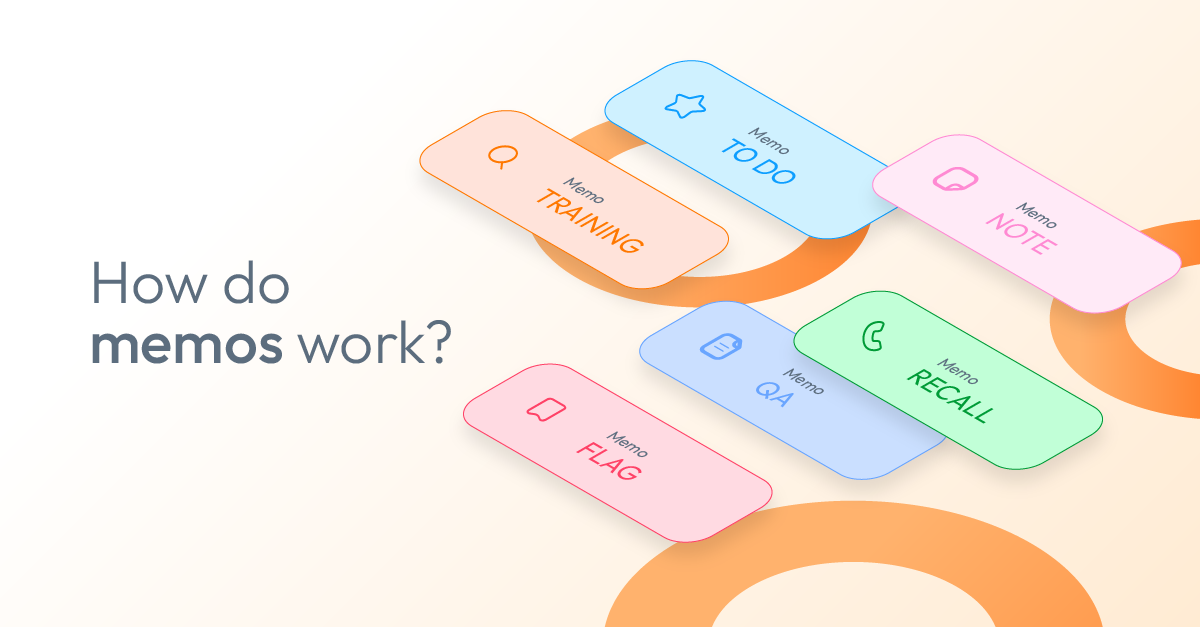
How can we keep better track of what happens during customer calls?
If your call center struggles with lost context, missed follow-ups, or unclear task assignments, the Memo feature in QueueMetrics can help.
Memos in QueueMetrics
In QueueMetrics, memos are a useful feature that allows call center supervisors and agents to add notes or comments to specific calls, send courses, schedule recalls, receive notifications and plan your work day/week.
Here is why memos are beneficial:
-
Enhanced Call Documentation:
Memos help keep track of important details about customer interactions, such as customer complaints, resolutions, or follow-up actions. -
Improved Team Collaboration:
Agents and supervisors can leave notes for others, ensuring that all team members are informed about past interactions with a caller. -
Quality Assurance & Compliance:
Supervisors can use memos to highlight areas where an agent performed well or areas that need improvement, making it useful for training and compliance audits. -
Better Customer Service:
With memos, agents can quickly review previous call notes before handling a returning customer, leading to a more personalized and efficient experience. -
Tracking and Reporting:
Memos can be used to categorize calls and provide context in reports, helping managers analyze call trends and customer issues.
The Agent daily View
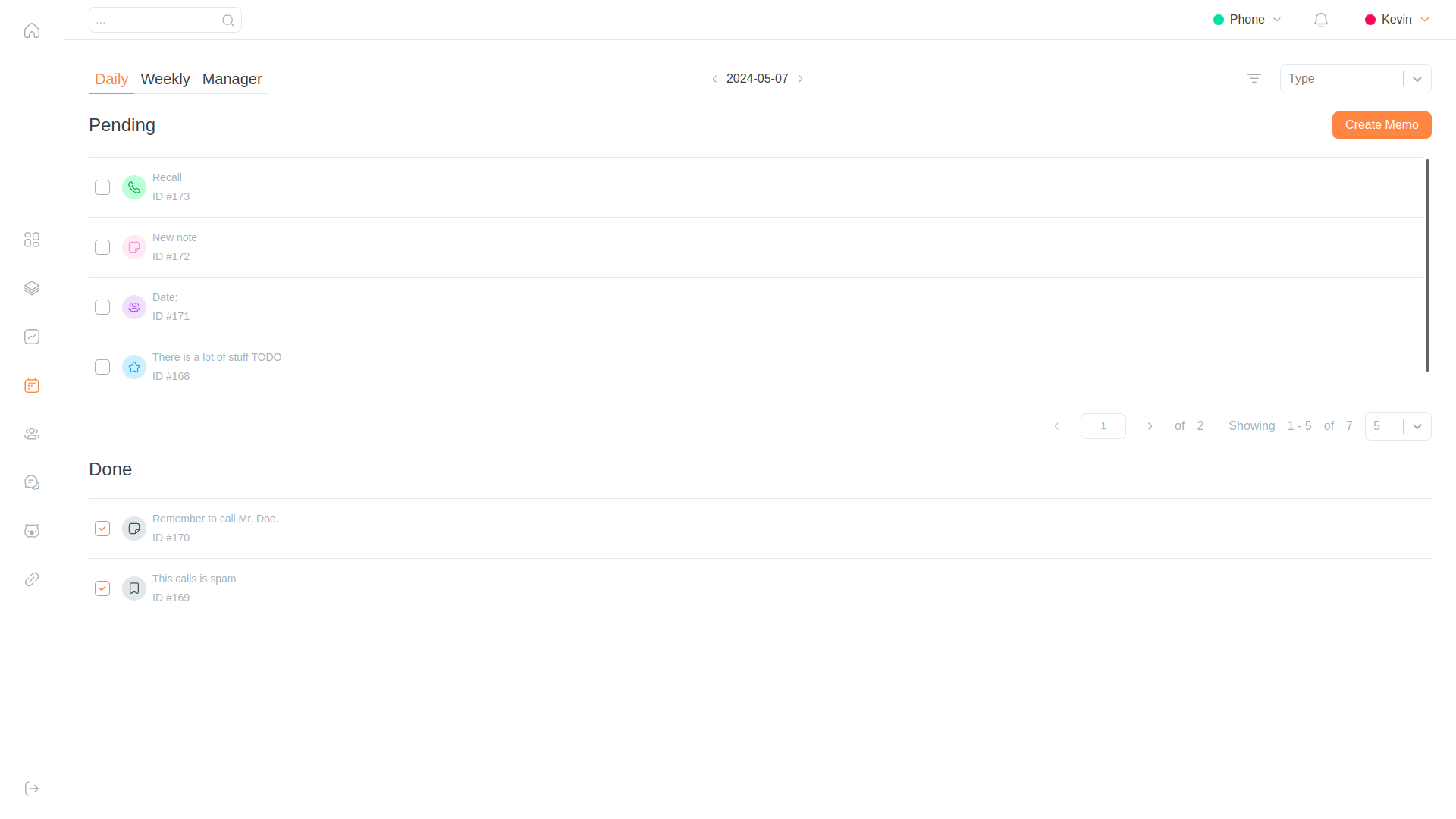
The View is divided in two. A list of pending Memos, whose state is listed as “TBD”, and a list of completed ones with status “OK”. There is a “Create Memo” button in the top right that will bring the User to the Memo Creation Editor.
Both tables are paginated, and clicking on the checkbox on the left of a pending memo will complete it, while clicking on the same spot for a completed memo will put it back in the Pending list.
Clicking on a Memo will take the user to the Edit Memo page.
Using the selector on the top right, the user can change the day they are looking at, filtering memos by their expiration date. If a Memo is expiring on a specific date, the user will see it listed in the daily view of that day.
Agent weekly View
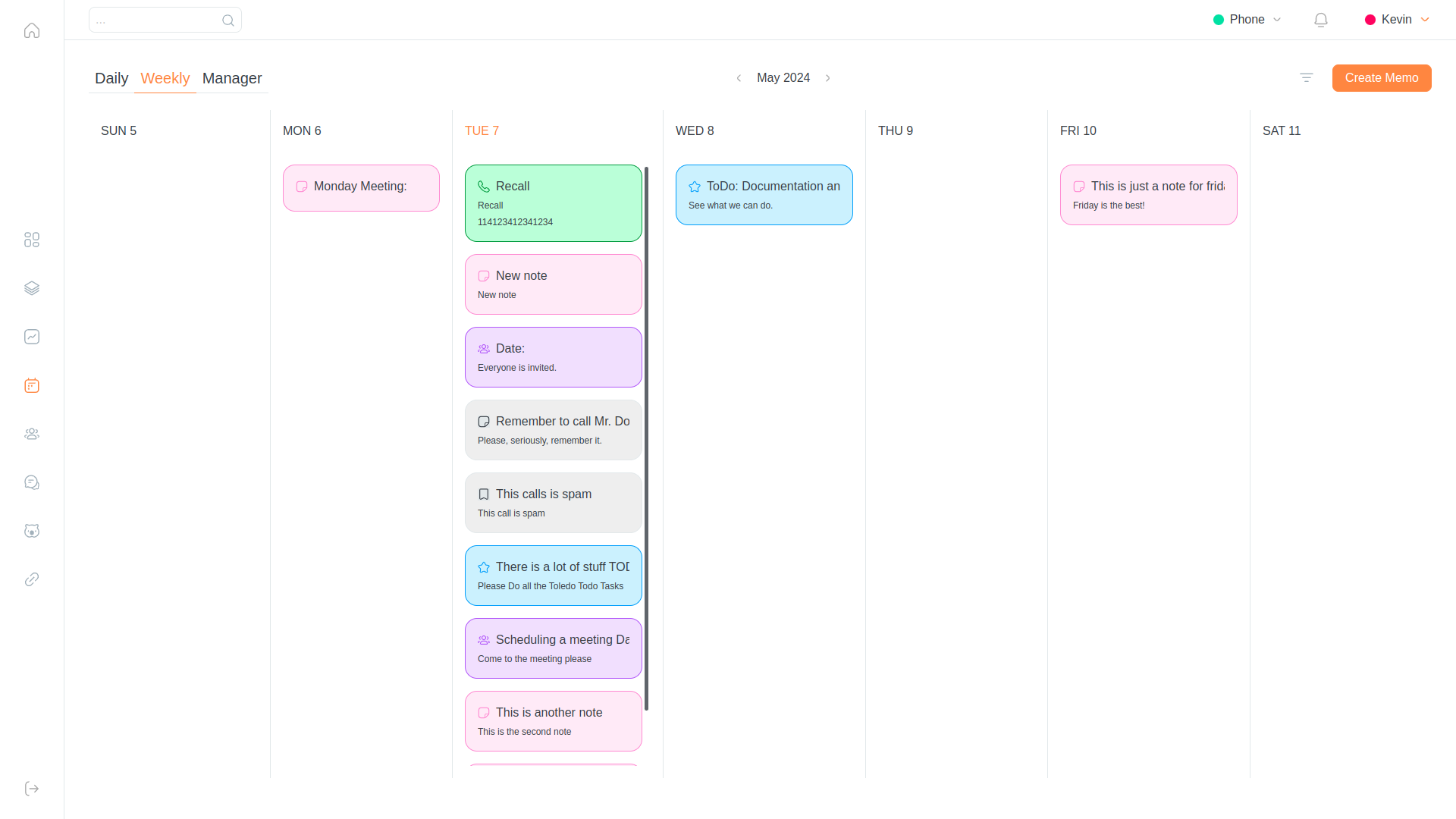
In this view, Agents can see their Memos organized by week, in a calendar-style view. While the individual days are not strictly divided by hour, they are divided by day, creating different individual lists, one for each day of the week. By using the top selector, the user can change week, moving backwards and forward in time.
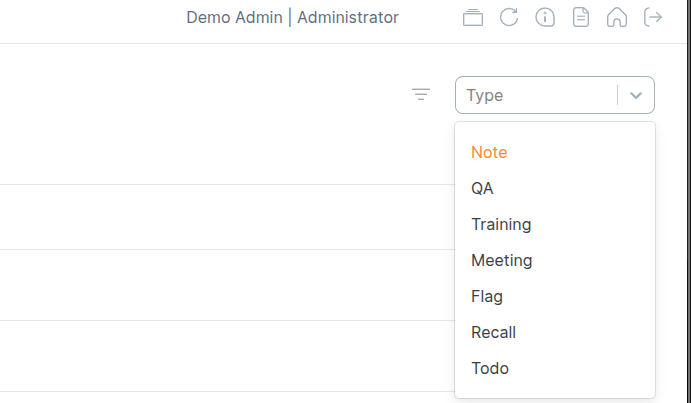
Memos are color coded based on the type, and each type of memo has its own icon. Hovering with the mouse over an icon will tell the user the Memo’s type.
The user will find the Create Memo button here as well, with a filter icon on its left. Clicking on this icon will show two drop-down menus that let them filter Memos by Status and Type.
Clicking on a Memo will take the user to the Edit Memo page.
Manager memo View
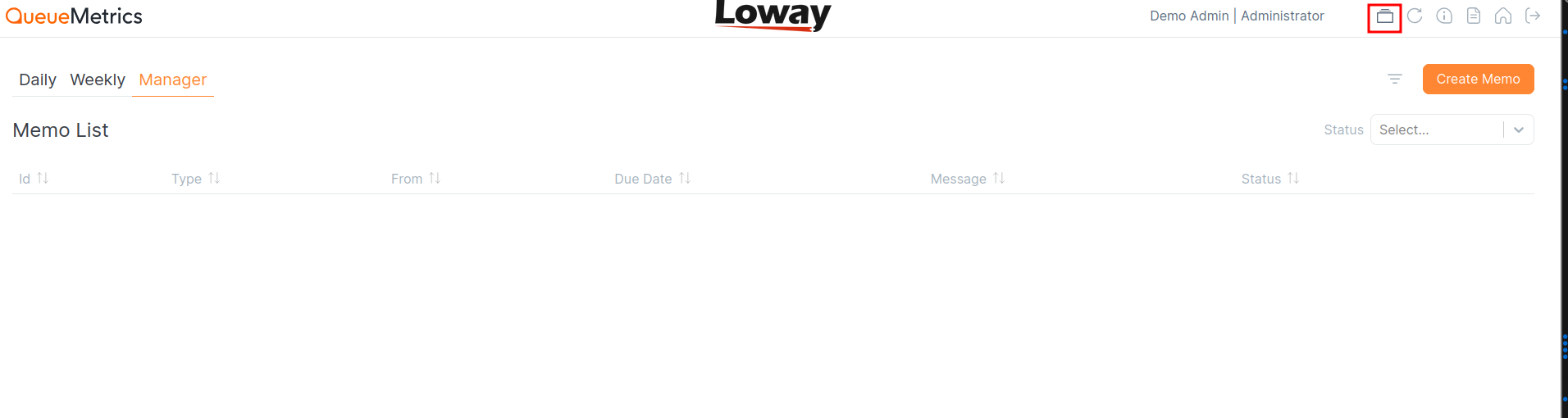
In this view, Users can see their Memos in full, filtered by types. The page appears as a table that lists all Memos that satisfy the User-defined filters.
Actions with Memos
Agent Actions:
- Click “Create Memo” in their task panel.
- Fill in details:
- Memo Type (Notes, Recall, Flag, etc.)
- Message Content
- Recipients (limited to their assigned teams)
- Expiration Date
- Save and notify: The memo appears in the recipient’s notification panel.
Admin Actions:
- Create memos for any agent or team.
- Assign QA, Training, and ToDo tasks to specific agents.
- Set mandatory tasks that agents cannot reject.
- Manage deadlines and track task completion.
Types of Memos:
- Note – General information.
- ToDo – Tasks for agents.
- Meeting – Meeting reminders.
- QA – Feedback from supervisors.
- Recall – Follow-up reminders with automatic call-back.
- Flag – Important memos requiring attention.
- Training – Learning or coaching-related memos.
Memo Editor
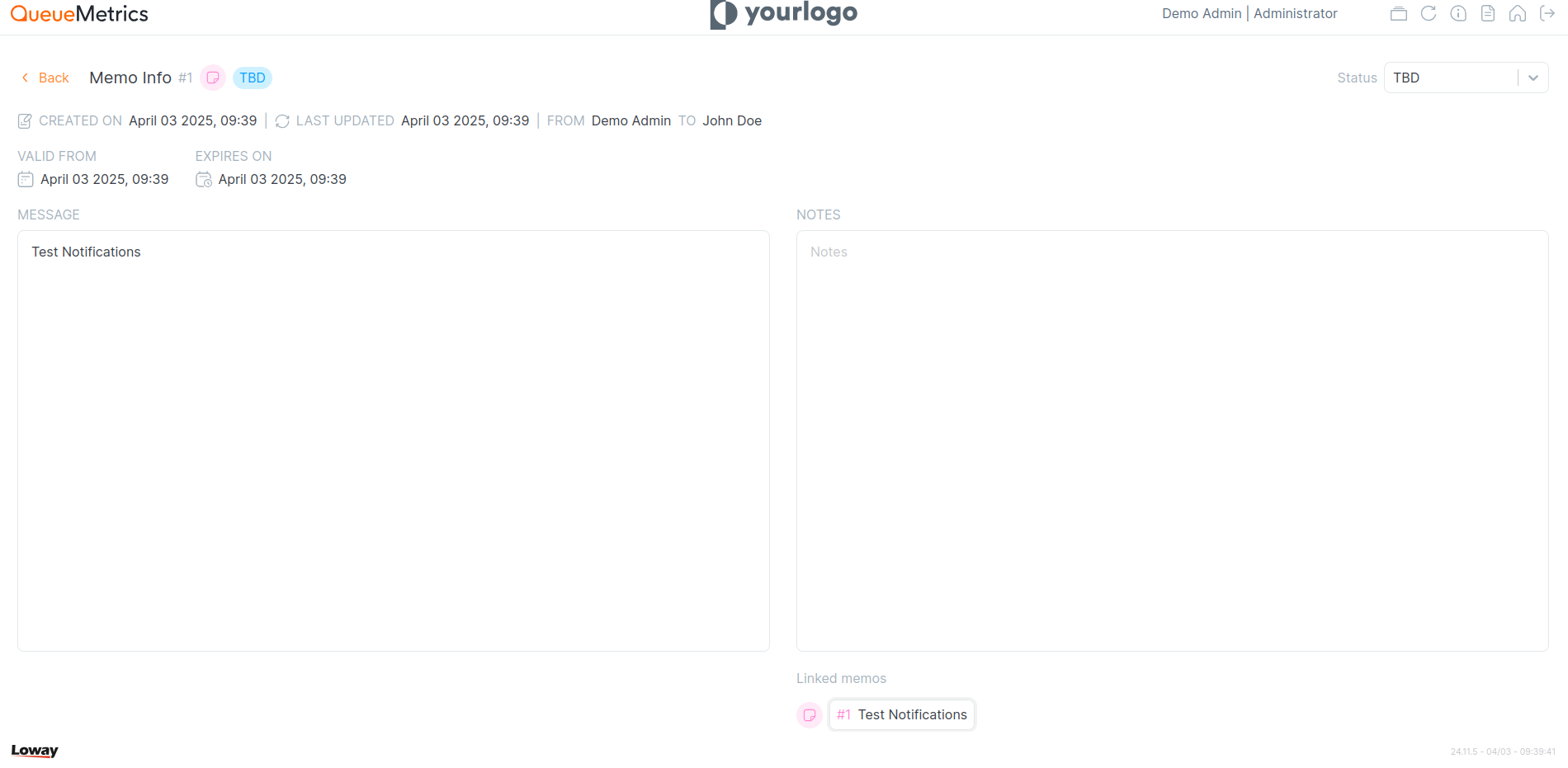
Memos can be edited in different parts, depending on the ownership (Assigned to the Memo creator). If a user is the Owner of a Memo, they can modify the “Message” part of the Memo, as well as their status. If the user is the receiver of the Memo, they are able to modify the Notes section.
Both are allowed to edit the status of the Memo, and to create a linked Memo by using the button at the bottom of the page.
Agent Notifications
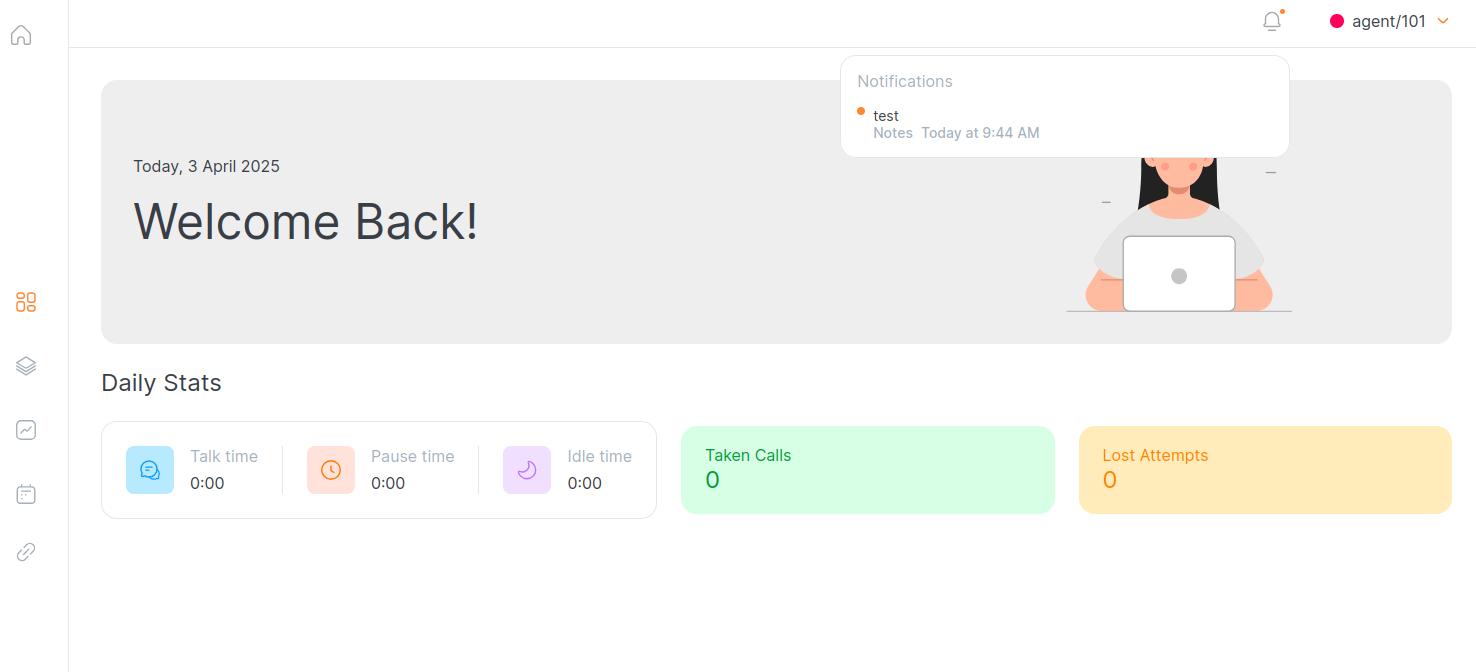
When a Memo is created by a user, or sent to them, it will appear in the top right Notification menu. Clicking on the notification for a Memo will take the user to the Edit Memo page for that Memo.
Recall Memos
From the Interaction Detail view, the user can create a Recall Memo for that specific Interaction. Those Memos will offer a specific recall button in their Edit Memo page, that allows user to initiate a call directly, if their softphone is enabled.
Handling Memos
Memos can have different statuses, that keep track of their completion and acceptance in case of tasks that are assigned to agents, namely:
-
TBD: The task has been created but not completed
-
OK: The task was successfully completed
-
Rejected: The task was rejected by the receiver
-
Refused: The task was refused by the receiver
User key and grants
-
Users with the
TASKSkey: This key allows a user to view and modify the memos they have sent and received. Therefore, if an administrator or supervisor has this key, they can manage their own memos directed to users. -
Users with the
TASKS_VIEWALLkey: This special key allows users to monitor all tasks (including memos) within the system. This means that an administrator or supervisor with this key has full visibility of all memos created in the system. -
Users with the
TASK_PUSH_TCkey: This key grants access to the “Training and Coaching” page, which enables the sending of CBT (Computer-Based Training) and Meeting (Coaching) tasks to agents. While these are not general memos, they are administrative actions used to send structured communications (tasks) to users.
You can find out more about the User Keys features here.
About QueueMetrics
QueueMetrics is a highly scalable monitoring software that lets you track agent productivity, payrolls, measure targets, conversion rates, queues/ACDs, IVRs, music-on-hold, generate outbound campaign statistics and monitor realtime processes with customizable wallboards.
You can measure all activities in your contact center with more than 200 different metrics and manage realtime processes with live alarms and full control on calls and extensions, including whisper, spy and barge modes.
QueueMetrics is available on premise or as a cloud hosted service, and it is compatible with FreePBX, Grandstream, Issabel, MiRTA, Enswitch, Yeastar S PBX, VitalPBX, FusionPBX and many other Asterisk- and Freeswitch-based systems. It also supports Microsoft Teams telephony.
For more technical information please refer to the User Manual.
Visit www.queuemetrics.com for a free 15-day full-featured trial.
keyboard_arrow_left Back