QueueMetrics Wallboard Kiosk Mode
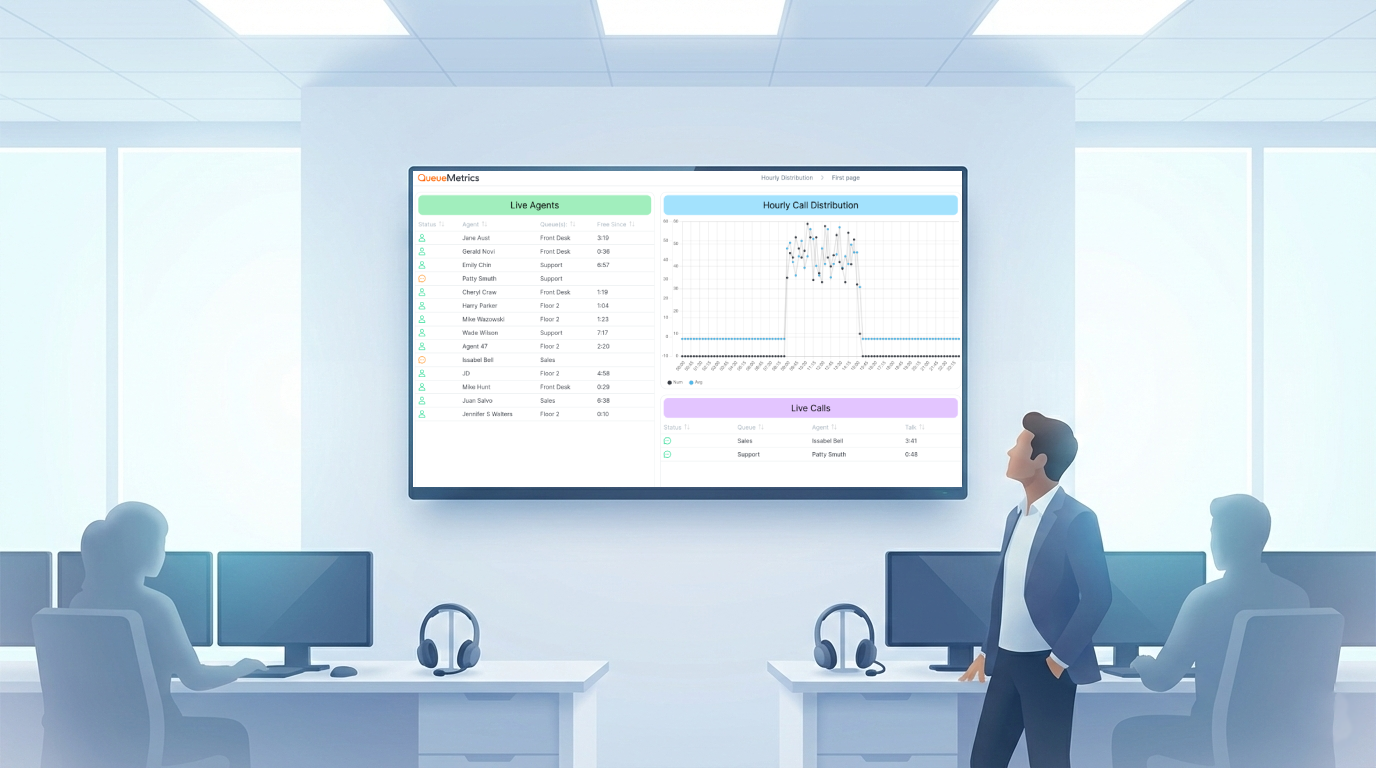
What is Kiosk Mode?
QueueMetrics kiosk mode lets you run a Wallboard as a stand alone page on a dedicated screen, without requiring a normal interactive QueueMetrics session. It is ideal for TV screens in the call center, supervisor stations, or a small always on dashboard device.
This guide explores how to create a wallboard, generate the kiosk URL, and deploy it quickly.
Overview
QueueMetrics wallboards are made of one or more views that can rotate automatically. Each view contains widgets laid out on a grid, so you can build dashboards that are readable from a distance.
Kiosk mode is simply the same wallboard opened with a special URL that logs in automatically with a dedicated user and shows the wallboard full screen.
Prerequisites
Before you start, make sure you have:
-
Access to the Wallboard page
You need a User with the user keyREALTIMEto view wallboards.
( how user keys work ) - Permissions to edit and share wallboards
If you need to create or edit wallboards, your user should also have:WALLBOARD_ADDto create and save wallboardsWALLBOARD_FORALLto create public wallboards that can be shared
-
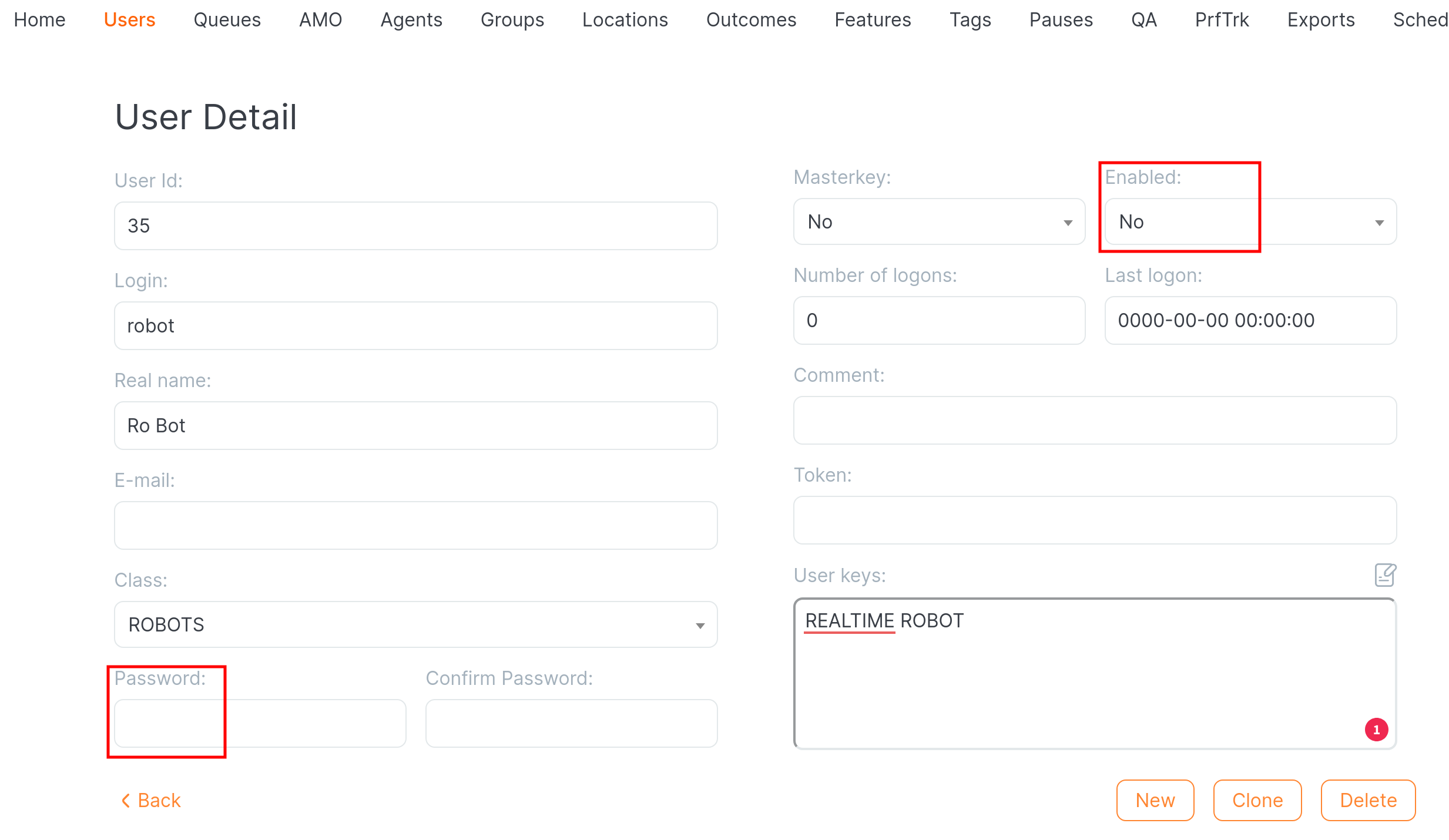
A working robot user for kiosk mode
Kiosk URLs are designed to use a dedicated user (often calledrobot).
In many new installs the robot user exists but is disabled, so you may need to enable it and set a password.For kiosk mode, the kiosk user must have:
REALTIMEROBOT
Tip: keep this user limited to wallboard viewing only, and do not reuse a supervisor account in kiosk URLs.
Create a wallboard
Where to find the Wallboard page
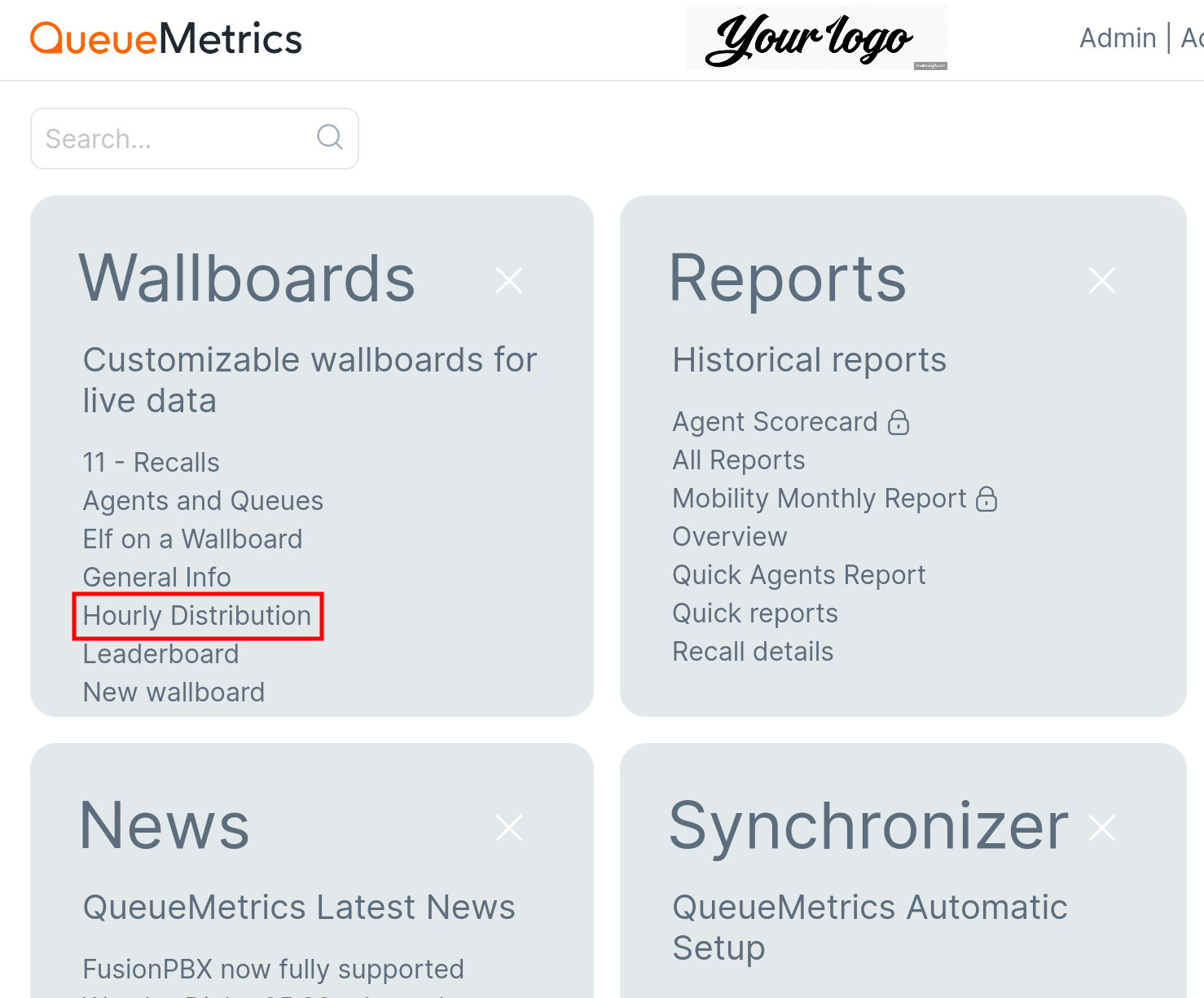
From the QueueMetrics home page you can open the default wallboard using the Wallboard link.
You can also open saved wallboards from the Wallboards section of the home page.
Rotation behavior to remember
- Views rotate when Play is active.
- If you change something on the page, rotation stops automatically until you manually reactivate it.
- Set each view duration so the whole cycle is readable from a distance, usually 10 to 30 seconds per view.
Get the kiosk URL
Kiosk mode is available for public wallboards.
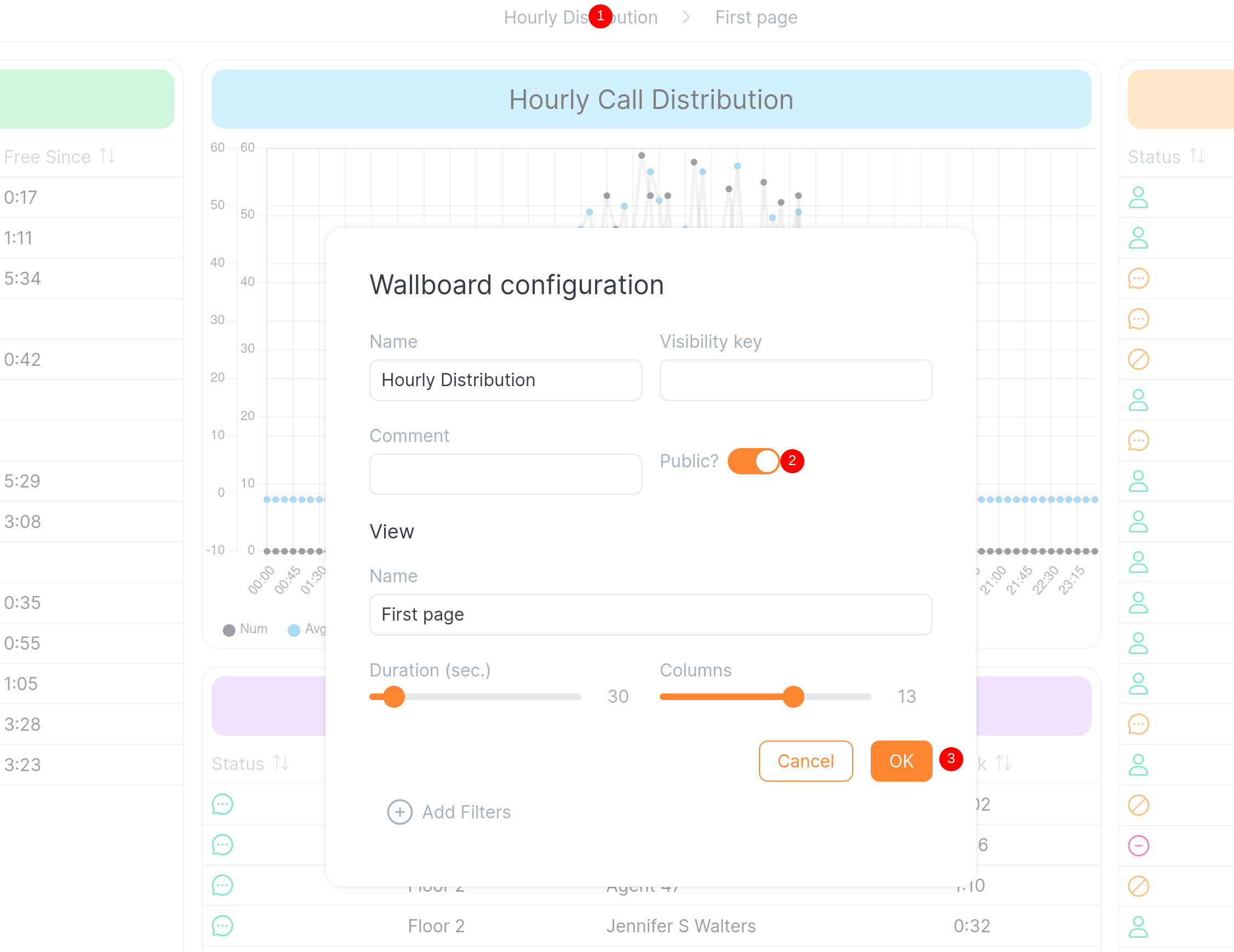
Once the wallboard is public:
- Open the wallboard.
- Click the Share icon in the top bar.
- QueueMetrics copies a kiosk URL to your clipboard.
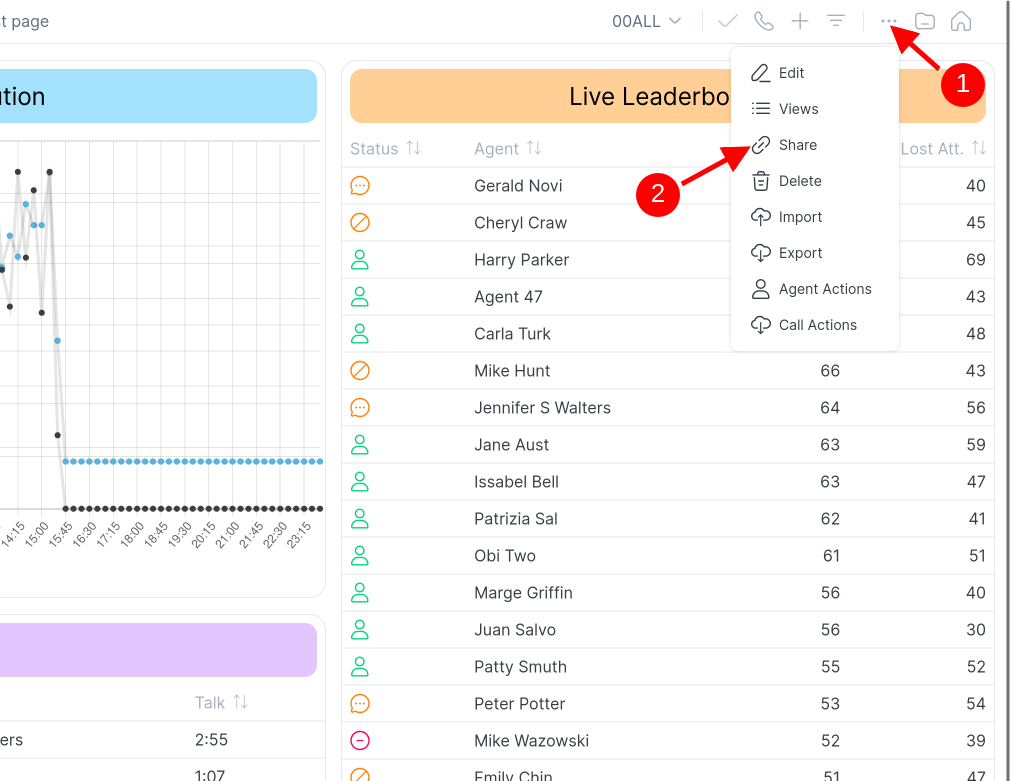
The kiosk URL looks like this:
https://my.queuemetrics-instance/queuemetrics/qm_wab2.do?user=robot&pass=***&queues=300%7C301&wallboardId=10
Editing the queues in the URL
The queues parameter is the list of atomic queues used as data sources for the wallboard.
- Multiple queues are separated by a pipe character.
- In URLs, the pipe is encoded as
%7C.
Example:
queues=300%7C301means queues 300 and 301.
Important security notes
- The URL contains credentials. Treat it like a password.
- Update
pass=***so it matches the real robot password.
Deploy the kiosk screen
A kiosk setup can be as simple as a browser in full screen mode.
Recommended approach
- Use a small computer connected to your TV or monitor.
(mini PC, smart TV or a Raspberry Pi) - Open a modern browser and paste the kiosk URL.
- Switch the browser to full screen mode.
- Disable screen sleep on the device so the wallboard stays visible.
- If possible, configure the device to auto start the browser at boot.
Tips and troubleshooting
The screen shows a login error
- Check that the
robotuser is enabled. - Confirm the user has
REALTIMEandROBOT. - Verify the password in the URL.
Data looks wrong or incomplete
- Confirm the queues listed in
queues=...are correct and are atomic queues. - If you changed the queues used by the wallboard, update the URL accordingly.
Wallboard does not rotate
- Make sure the wallboard is in Play mode.
- Verify each view has a duration set.
Kiosk mode is a simple way to put real time information in front of the whole team.
Build a wallboard that is readable from a distance, generate the kiosk URL from the Share button, and run it on a dedicated device that stays on throughout the day.
About QueueMetrics
QueueMetrics is a highly scalable monitoring software that lets you track agent productivity, payrolls, measure targets, conversion rates, queues/ACDs, IVRs, music-on-hold, generate outbound campaign statistics and monitor realtime processes with customizable wallboards.
You can measure all activities in your contact center with more than 200 different metrics and manage realtime processes with live alarms and full control on calls and extensions, including whisper, spy and barge modes.
QueueMetrics is available on premise or as a cloud hosted service, and it is compatible with FreePBX, Grandstream, Issabel, MiRTA, Enswitch, Yeastar S PBX, VitalPBX, FusionPBX and many other Asterisk- and Freeswitch-based systems. It also supports Microsoft Teams telephony.
For more technical information please refer to the User Manual.
Visit www.queuemetrics.com for a free 15-day full-featured trial.
keyboard_arrow_left Back