Migration from the old Icon agent page to QAP
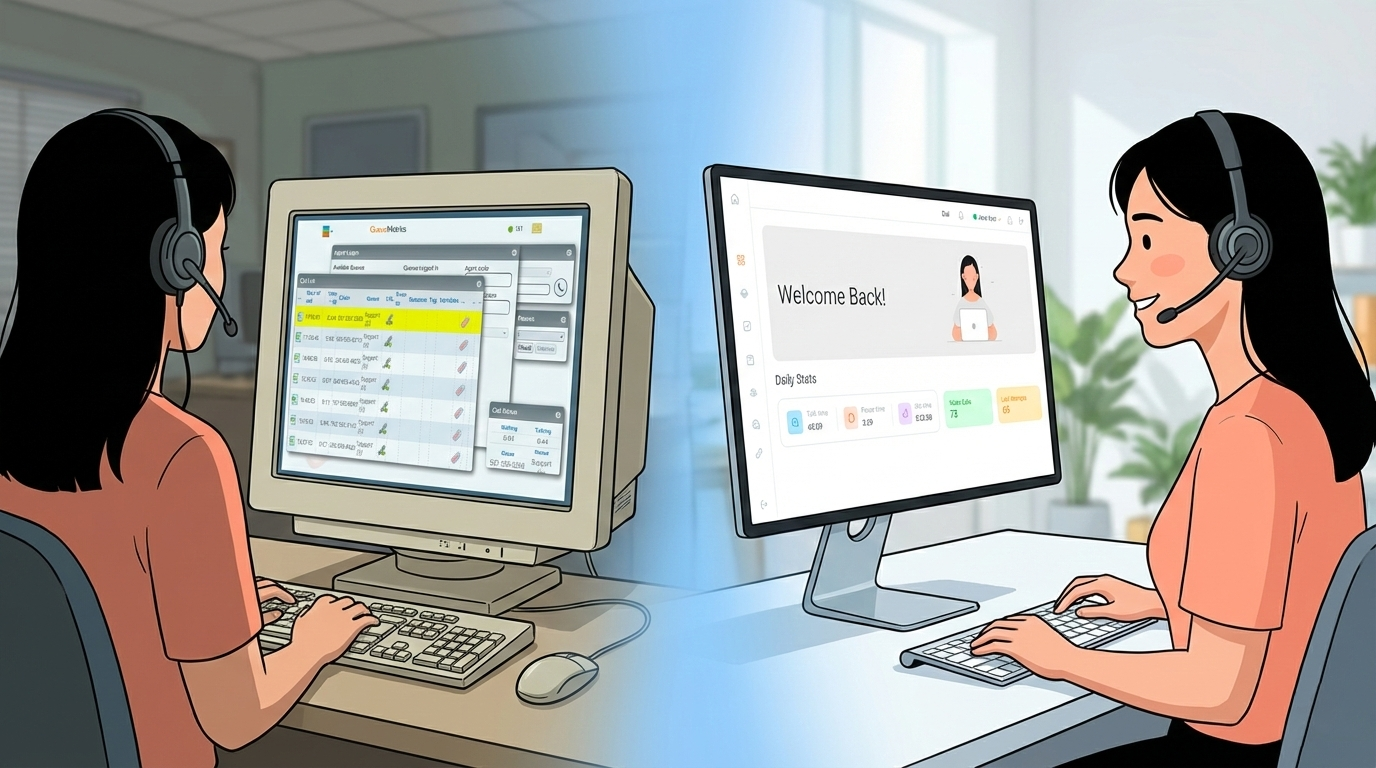
If your team is moving from the legacy Icon agent page to the new QueueMetrics Agent Page (QAP), this guide is for you.
You will learn how to perform the same everyday actions you already know, but in the new interface.
New QueueMetrics Agent page
QAP is the main workspace for agents in QueueMetrics. It is built to reduce clicks and keep everything needed during a call, in one place, so agents can stay focused and supervisors get cleaner data.
In this guide we cover the most common tasks agents perform on the Icon page, and where to find or how to do them in the new QueueMetrics Agent Page QAP.
For a deeper walkthrough and training material, see the full guide here:
QueueMetrics Agent page training
Preamble: How do I enable QAP if it is not on?
QueueMetrics does not usually force you to change anything, so if you run an old system that was upgraded, you will still run the Icon agent page until you explicitly switch. Still, the Icon agent page is scheduled for removal on the next major version of QueueMetrics, so it is important that you start training your agents now with the QAP agent page.
It might sound a bit counterintuitive, but to enable the new QAP agent page, you will need to remove the NEWAGENTPAGE user key, either for all from the users, or the user class.
- To enable it for all agents at once: as an admin, click on Configuration -> Users -> Show classes -> edit the class AGENTS -> remove the key
NEWAGENTPAGEthere. Log agents off and on again. - To enable it for specific agents, eg. for initial testing: as an admin, click on Configuration -> Users -> select your agent -> in the “User keys” box, add
-NEWAGENTPAGE(with a minus in front). Log the agent off and on again.
Getting started: Where can I find my action menu?
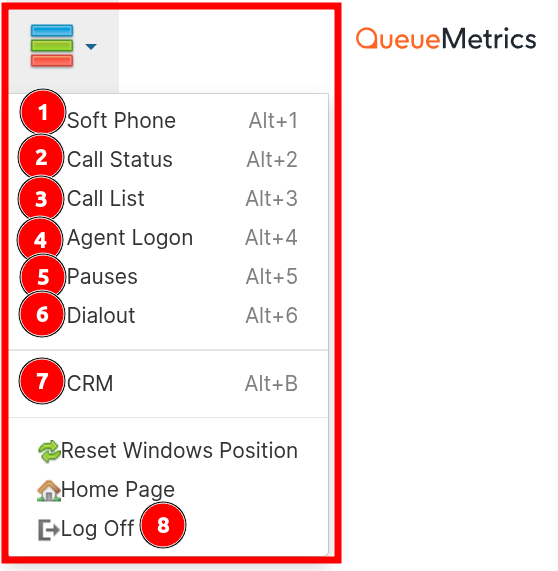
This was the previous view of action on the Icon page:
This is the new view on QAP:
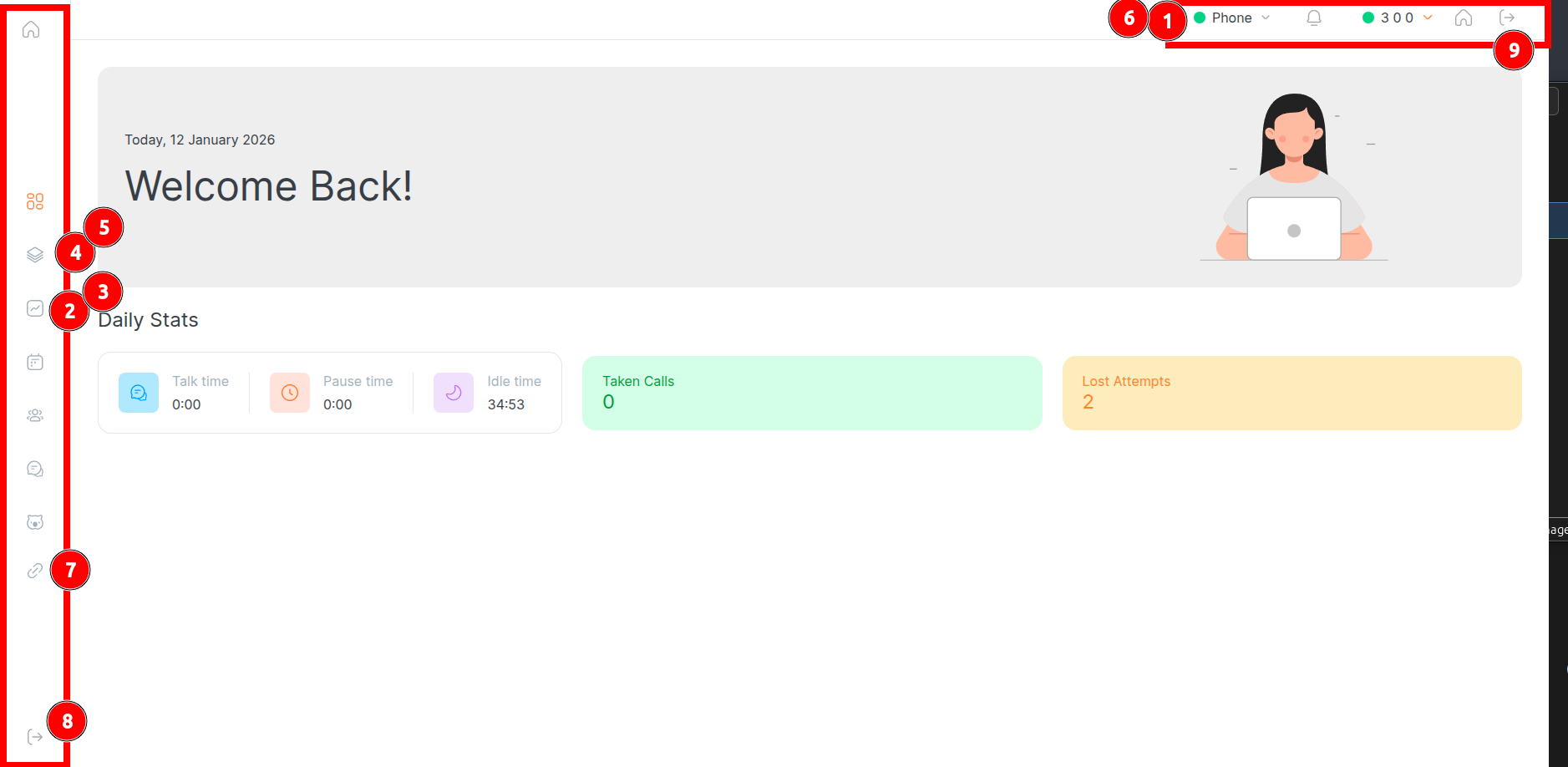
On the new home page, you can view some personal statistics and find the new location of the following features:
- Softphone
- Call status
- Call Interactions (unified in QAP)
- Queue list where the agent can log in (unified in QAP)
- Pause menu
- Dial-out menu (unified in QAP)
- CRM integration
- Log out
- Log out (QAP)
Some additional information in the latest agent page
The Agent Status Panel
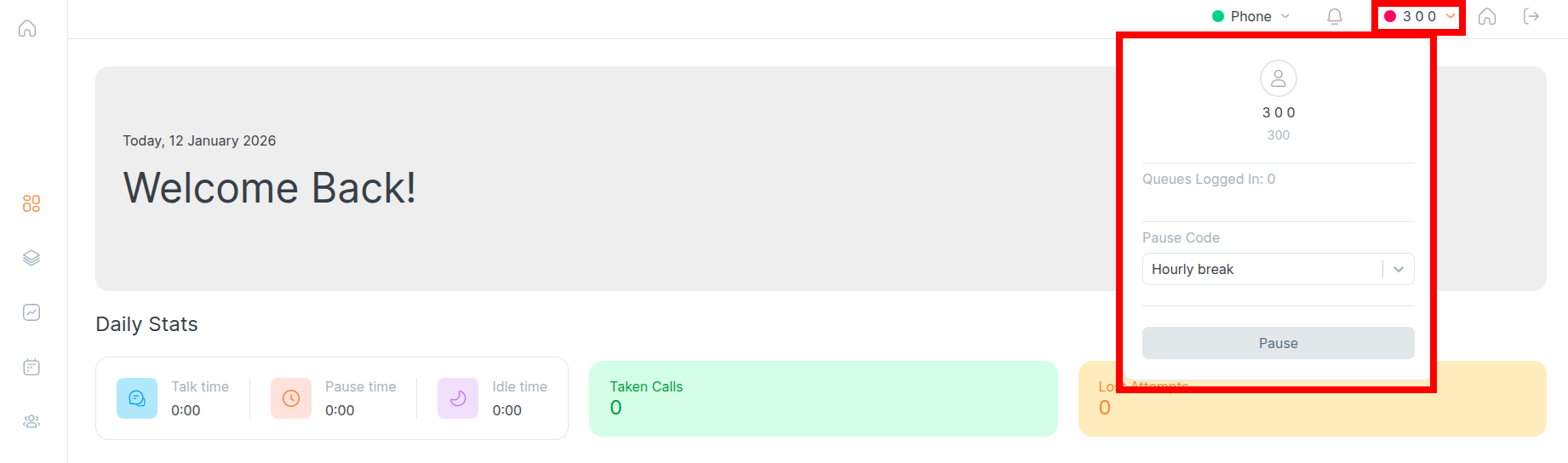
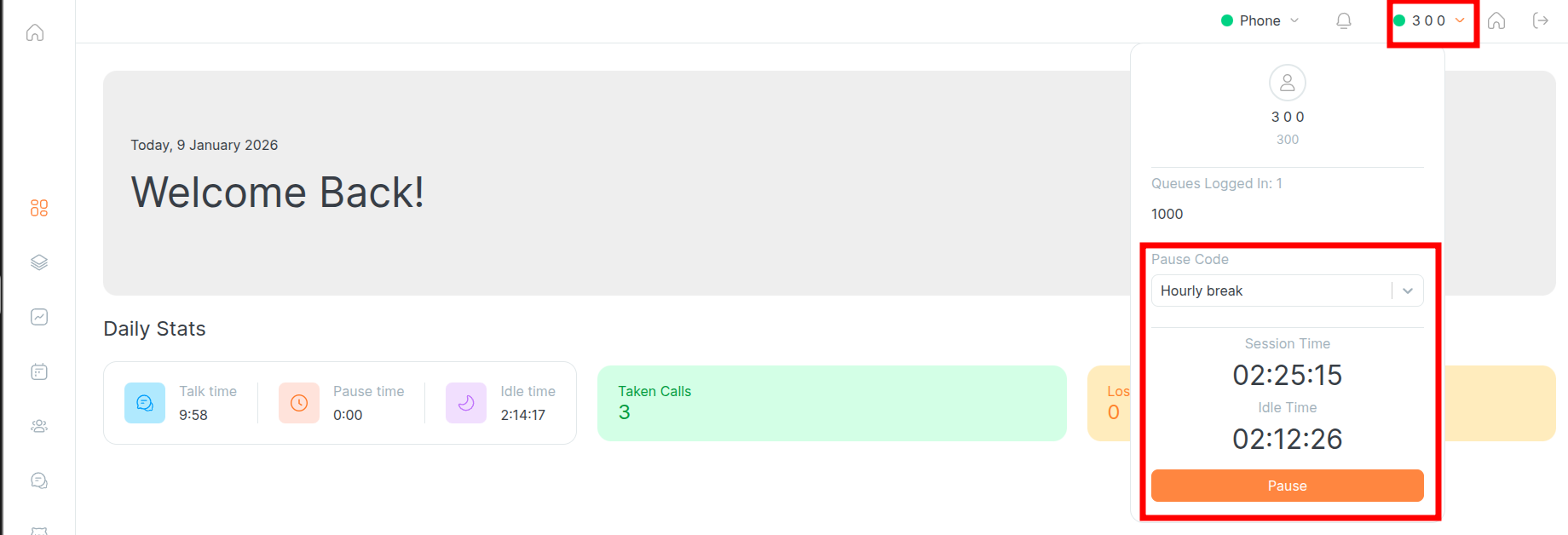
If you open the menu next to the agent’s name, you can see useful information such as:
- The queue(s) the agent is logged into
- Pause menu
- Session duration and idle time
How do I log in to a queue and start working
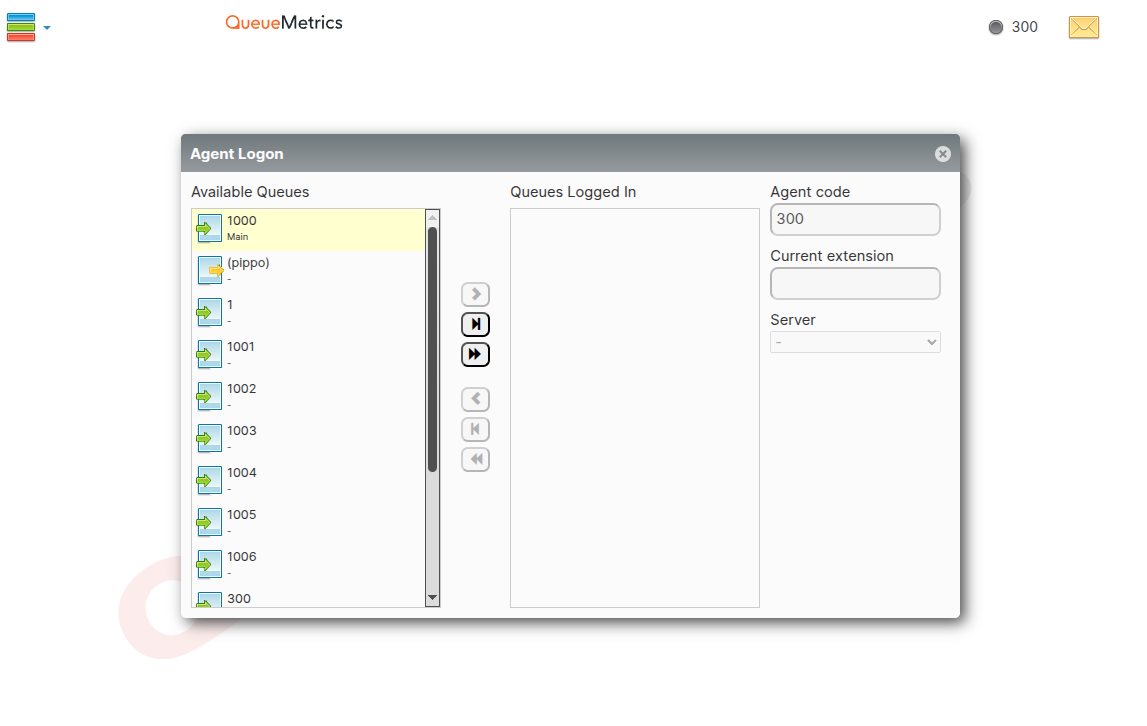
Differences between the old and the new Queue List menu:
This was the previous view:
This is the new view:
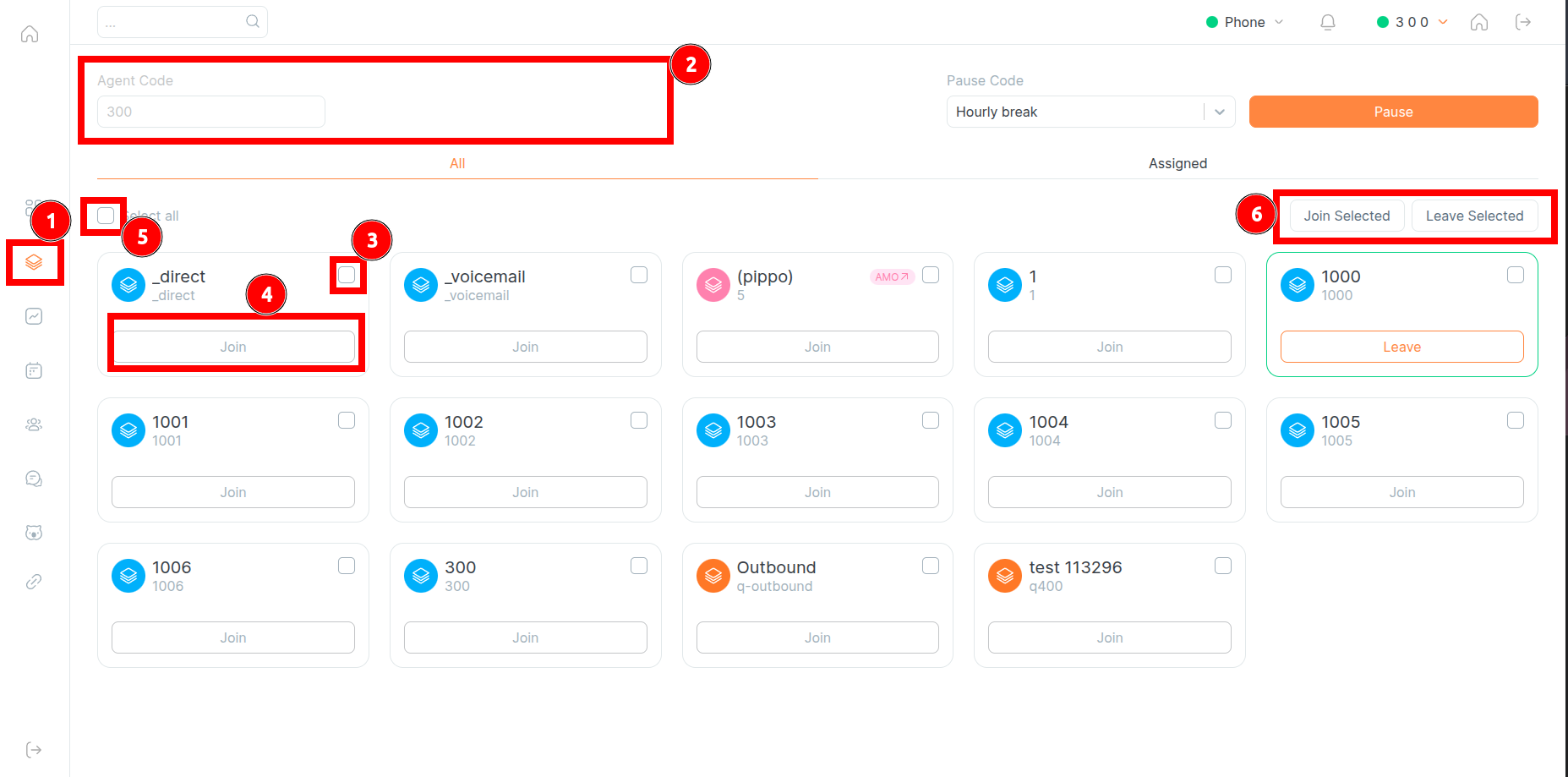
Follow the steps below to log in to or log out from a queue:
Step 1. Open the Queue List
From the Home page, navigate to the Queue List view.
Step 2. Check or enter your extension (optional)
In the Queue List page, you can see the agent’s extension. If Hotdesk mode is enabled, enter the extension you want to use for your working session.
Step 3. Select the queue
Choose the queue you want to work on from the list.
Step 4. Join the queue
Click Join to log in to the selected queue.
Step 5. Select multiple queues (optional)
If needed, you can select multiple queues or use Select All.
Step 6. Use Join Selected for bulk join (optional)
Select multile, or all the queues, and press the Join Selected button to join multiple queues at once.
To log out, follow the same steps and use the Leave option instead of Join.
How can I set or manage pauses now
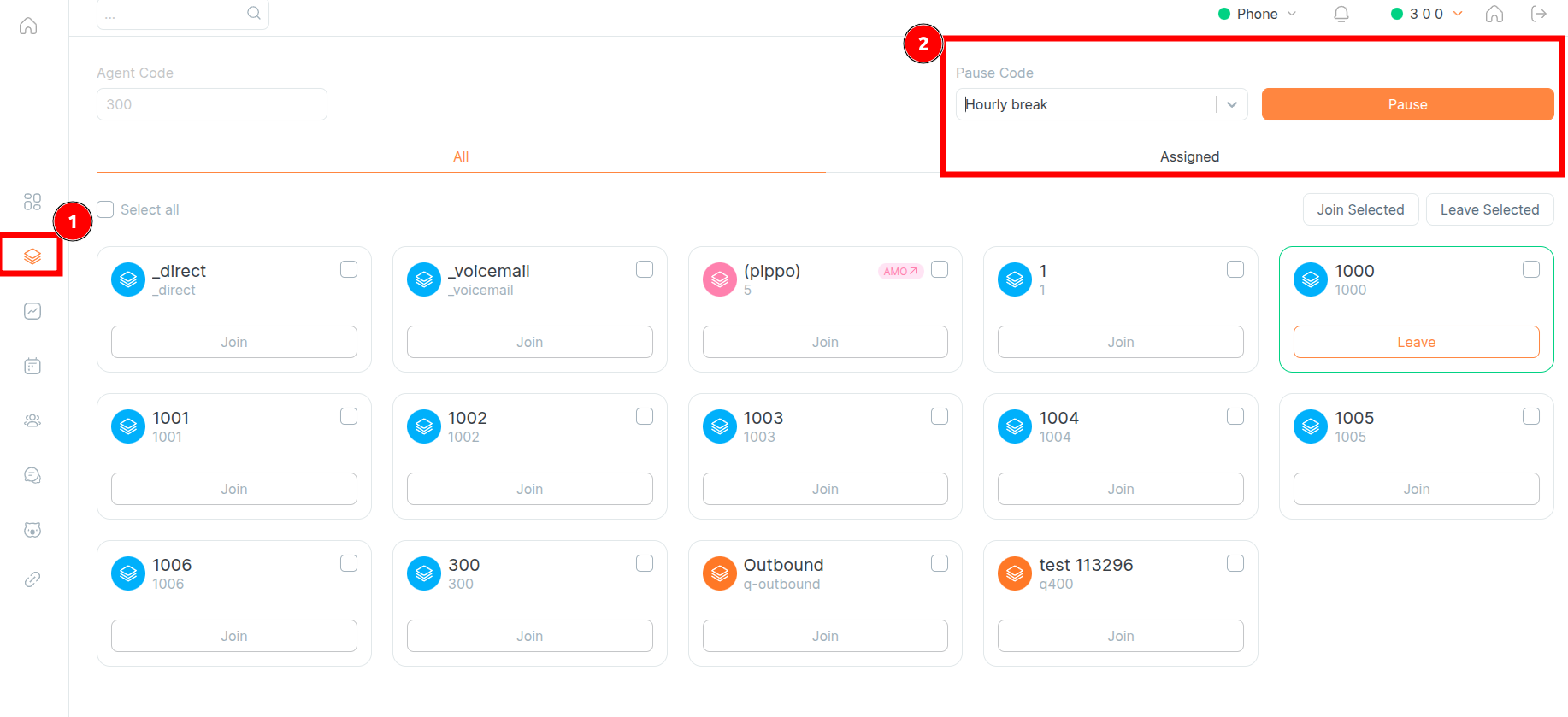
The pause menu is available in two different locations on this new agent page:
- In the Agent Status Panel:
Accessible in the upper right corner of the main page after logging into QueueMetrics.
This panel provides real-time information on the agent’s status and features the pause menu:
- Queue List View:
after accessing the Queue List (Step 1), the pause menu is located in the top right side of the page (Step 2).
Here you can find more details about the new control queue page
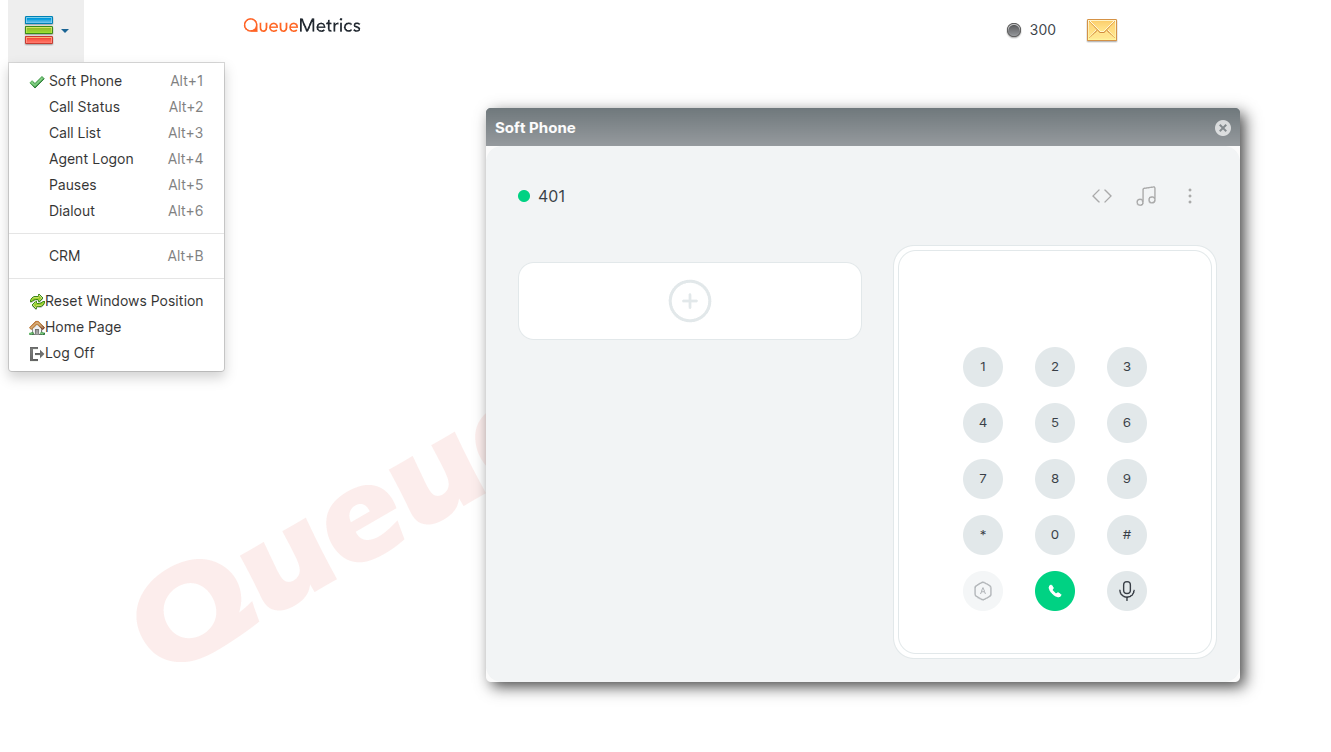
Where can I find the softphone
This was the previous view:
Here is the new view. To open it, click the phone button on the updated agent page:
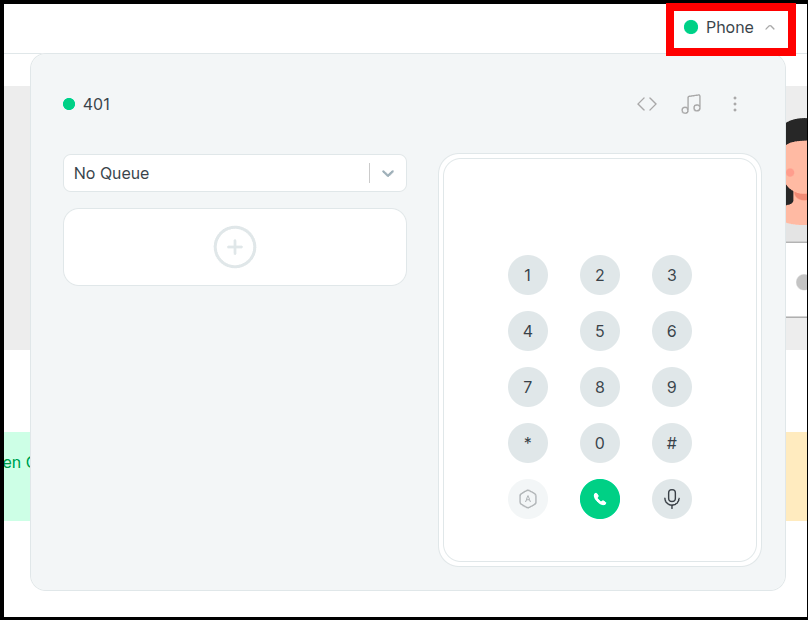
You will find this softphone much more intuitive than the old system, with added capabilities such as automatic responses to streamline your communication.
Here you can find more details about the SoftPhone.
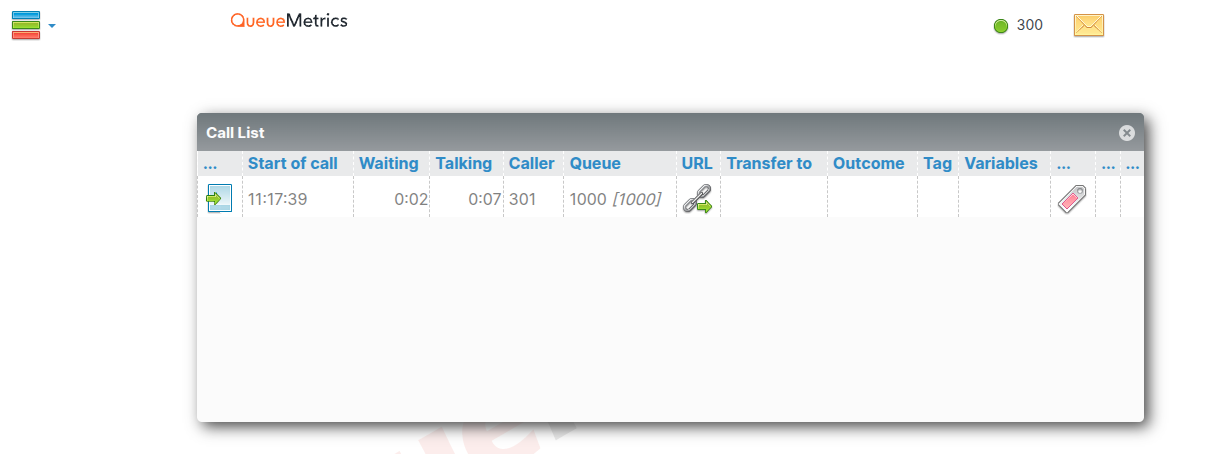
What about my call history
The Interactions section is the hub where agents can view and manage their daily call interactions. It provides a comprehensive view of all the calls an agent has handled (inbound and outbound), ensuring transparency and clarity in their daily tasks.
This was the previous view:
This is the new view:
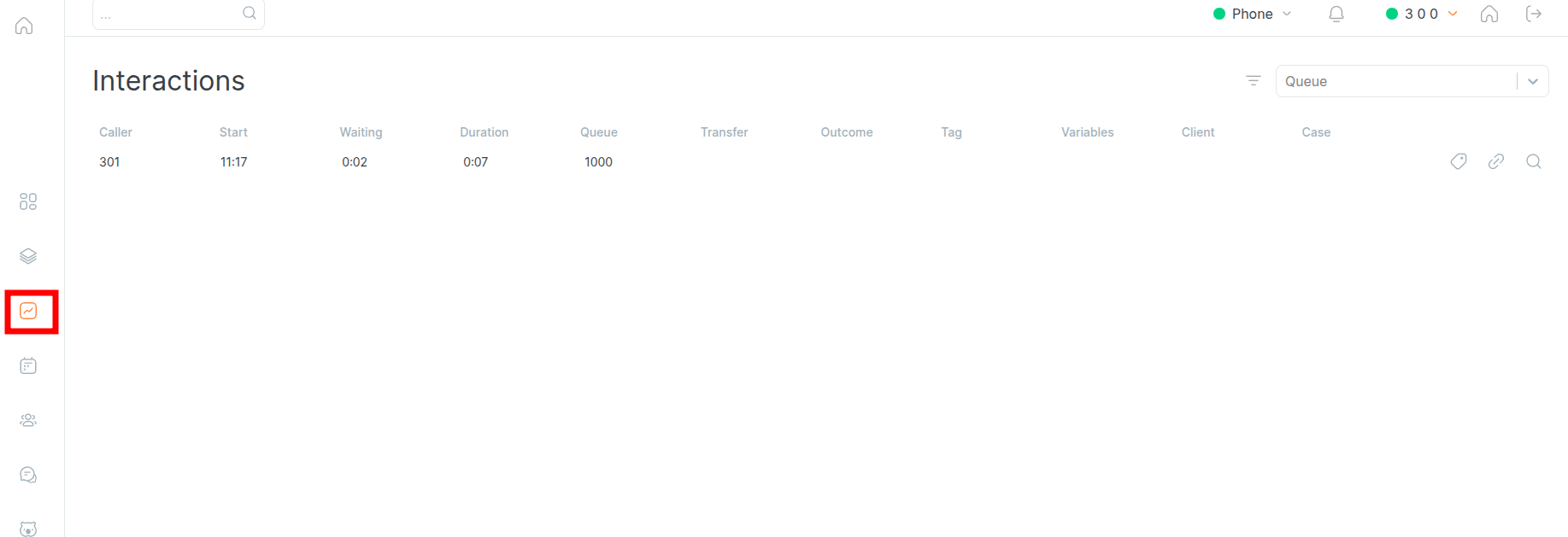
Here you can find all the details about the Call Interactions page
In this new version of the Agent Page, you will also find a wide range of additional features, such as:
About QueueMetrics
QueueMetrics is a highly scalable monitoring software that lets you track agent productivity, payrolls, measure targets, conversion rates, queues/ACDs, IVRs, music-on-hold, generate outbound campaign statistics and monitor realtime processes with customizable wallboards.
You can measure all activities in your contact center with more than 200 different metrics and manage realtime processes with live alarms and full control on calls and extensions, including whisper, spy and barge modes.
QueueMetrics is available on premise or as a cloud hosted service, and it is compatible with FreePBX, Grandstream, Issabel, MiRTA, Enswitch, Yeastar S PBX, VitalPBX, FusionPBX and many other Asterisk- and Freeswitch-based systems. It also supports Microsoft Teams telephony.
For more technical information please refer to the User Manual.
Visit www.queuemetrics.com for a free 15-day full-featured trial.
keyboard_arrow_left Back